Home Assistant Presence Detection From Your Own Network, No App on Each Phone
Short version. Home Assistant knows who is home from device trackers tied to a person. PingKit Agent, installed as a Home Assistant app or run in Docker next to your broker, gives every phone and tablet on your network a device_tracker over MQTT, free and with no app on the phones. Arrival counts at once; away waits 180 seconds with no answer (consider_home), and a stopped agent reads unavailable, never away. Set each phone's Private Wi-Fi Address to Fixed for your home network, test with the phone asleep, and pair it with the Companion app or your router's integration where those see more.
Full disclosure: I build PingKit, so weigh the recommendation accordingly. The first half of this guide applies to any Home Assistant setup. The second half shows how PingKit Agent, which runs as a Home Assistant app, turns the phones on your own network into device trackers over MQTT, for free, and where another method is the better choice.
Three Ways Home Assistant Can Tell Who Is Home
Presence detection in Home Assistant means a device_tracker entity for each phone, tied to a person under Settings, People. A person then reads home or away, and your automations act on that. The trackers come from one of three places:
- The phone reports its own location. The Home Assistant Companion app on iPhone or Android sends zone changes from the phone's location, so it knows when you leave and when you are on your way back, not only when you are on your Wi-Fi. It needs the app and location permission on every phone you track.
- Your router reports what is connected. Router integrations, such as UniFi Network, create a tracker for each device the router sees. The router knows when a phone joins its Wi-Fi without asking the phone anything. UniFi Network marks a device away 300 seconds after it was last seen, by default.
- Something on your network asks the phone. The Ping (ICMP) integration has a device tracker, off by default, with a "Consider home" delay of 180 seconds; Nmap Tracker scans the addresses you give it. Both need to know where to look, and both depend on the phone answering.
You can attach more than one tracker to a person. Home Assistant's person integration decides between them: while you are at home, connection trackers such as a router's decide first, and while you are out, position trackers such as the Companion app's decide first. That is why a network tracker and the Companion app work well together. (What each integration does is as its page on home-assistant.io describes it, checked 2026-11-16.)
Presence From Your Network With PingKit Agent
PingKit Agent watches your own network from the machine Home Assistant already runs on. With an MQTT broker, such as the Mosquitto broker app, it puts a device into Home Assistant for each device it finds, and the ones that go where a person goes get a device_tracker. This part is free on every tier, needs no account and no iPhone, and stays on your own broker.
- Arrival counts at once. The moment the agent sees a tracked phone, the tracker reads home.
- Away waits three minutes. A tracker reads away only after 180 seconds with no answer, the "Seconds before away" option (
consider_home, 30 to 3,600 seconds). Home Assistant does not debounce an MQTT tracker itself, so the agent does the waiting. - It asks, rather than waits for a scan. The agent's full sweep runs every 15 minutes, which is no use to a three-minute window. So while MQTT is connected it also checks the tracked devices and your router, once a minute at the default, with the same probes the sweep uses: a ping where the system allows it, connection attempts on a few common ports and the one the device last answered on, and the neighbour (ARP) table.
- Silence that proves nothing is not read as away. Until one full window has passed since the agent started, and whenever it has heard no device at all in that window, which points to the agent's own connection rather than the whole family leaving at once, a tracker keeps its last state.
- A stopped agent reads unavailable, not away. Every entity uses the agent's own online status as its availability, so a restart of the app does not send everyone out of the house and fire your "last person left" automation.
- It is a router-type tracker. Each tracker reports the source type
router, the same kind a router integration creates, with the device's IP address, MAC address, maker and last-seen time as attributes.
This is separate from the agent's Device Offline alert, which still waits for three missed sweeps. A phone that leaves for ten minutes changes its tracker; it does not raise a Device Offline alert.
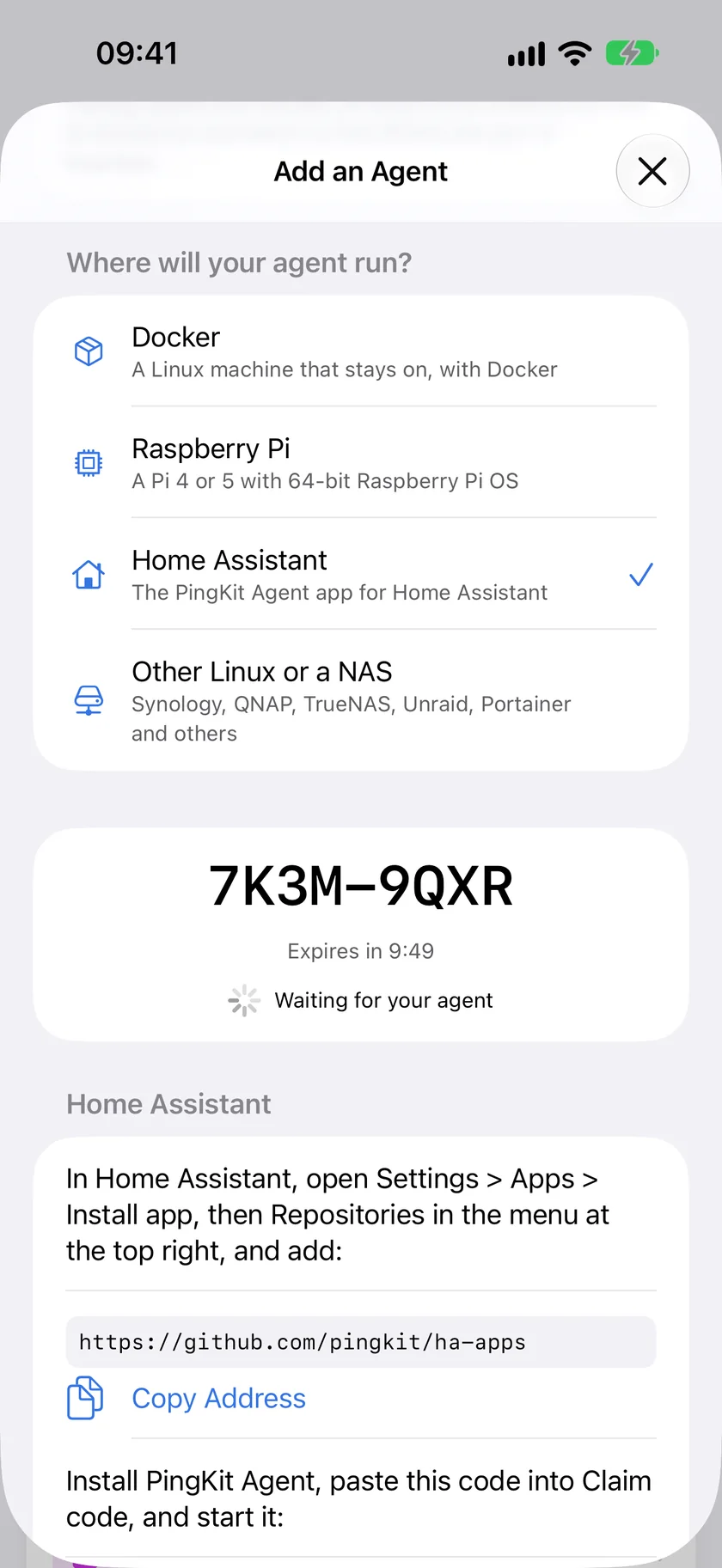
PingKit Agent installs as a Home Assistant app in three steps, and its presence trackers are free on every tier. Install it in Home Assistant
Which Devices Get a Tracker
The "Presence trackers" option decides, and its default, personal, keeps 80 smart bulbs out of your person settings:
- personal gives a tracker to phones and tablets, as PingKit's device classifier sees them, and to anything on a private (randomised) Wi-Fi address, which is what phones and watches use on a home network. Under
personal, your router never gets one. - all gives every device a tracker, and none turns them off.
Every other device gets a connectivity sensor that follows the last sweep. A tracker, once given, stays while the mode allows personal devices, even if the classifier later changes its mind about the device, because you may already have tied it to a person. Each entity follows the agent's own record of the device rather than its MAC address, and its first entity ID comes from the device's name, such as device_tracker.pauls_iphone_presence.
Running the agent in Docker or on a Raspberry Pi with Home Assistant elsewhere works the same way: point it at your broker with PINGKIT_MQTT_URL, and the agent's config.yaml can also list devices under mqtt.track that always get a tracker. The topics and payloads are documented in the agent's repository.
Set It Up
Install the agent from the Home Assistant app page, which has the repository button and the three install steps. Then:
- Have an MQTT broker. If you do not have one yet, add the MQTT integration under Settings, Devices & services; Home Assistant can set up the Mosquitto broker app for you as part of it. The agent then gets the broker's address and login from Home Assistant, with nothing to type.
- Find the devices. Once the agent has swept your network, the MQTT integration lists a PingKit Agent device and one device for each device on your network. A phone's tracker is named Presence.
- Tie each phone to its person. Under Settings, People, open the person and add the phone's tracker. Add the Companion app's tracker too, if that person uses it.
- Test before you trust it. Walk out with the phone, wait more than three minutes, and watch the person change. Then leave the phone on a table, screen off, for half an hour and check that it stayed home.
Phones That Sleep, and Why to Test First
A network tracker can only see a phone that answers. An idle phone may turn its Wi-Fi radio down to save power and stop answering for a while, and Home Assistant's own Ping documentation warns that a single ping tracker may not be reliable on its own for that reason. If your test shows a phone in a drawer reading away:
- Raise "Seconds before away", for example to 600. Arrival still counts at once; only leaving takes longer to notice.
- Add the Companion app's tracker to the same person, so a phone that is quiet on Wi-Fi but still inside your home zone keeps the person home.
- Use the person's state, not a single tracker's, in automations that lock doors or arm an alarm.
Private Wi-Fi Addresses: Choose Fixed
Phones join each network with a private, randomised hardware address. That is fine for presence as long as the address stays the same on your home network. An address that rotates is not: the agent may see the phone as a new device, which gets a new tracker, while the old tracker tied to the person reads away.
On an iPhone, open Settings, Wi-Fi, tap the info button next to your home network and set Private Wi-Fi Address to Fixed rather than Rotating. The phone keeps a private address, just one that stays the same on that network. Android phones also use a randomised address per network; if a phone shows up twice, check that network's privacy setting. More on why the setting exists: Why does my iPhone show a private WiFi address?
When a device does come back on a new address, PingKit on your iPhone with Guardian may ask "Same device?" with the evidence it has, and you confirm or reject the match.
When Another Method Is the Better Choice
A network tracker is one good input, not the best one for every home:
- Your router has an integration. UniFi Network and other router integrations see Wi-Fi connections directly, with no probing. If yours is supported, start there.
- You want to know before someone is home. Heating that starts as you leave work, or a door that unlocks as you arrive, needs the Companion app's zones. A network tracker only knows once the phone has joined your Wi-Fi.
- You track one or two phones with fixed addresses. The Ping integration's tracker does that with nothing to install.
PingKit Agent earns its place when your router has no integration, when you would rather not install an app on every family member's phone, when you want trackers without typing in addresses, or when you also want what the agent does besides presence: an internet connectivity sensor, a new-device event after its first day of learning, and an event entity for your automations.
What Is Free, and What Guardian Adds
Presence over MQTT is free on every tier, and so are the agent, its status page and its alerts to your own services, such as ntfy, Pushover or a Home Assistant webhook. It needs no iPhone at all. Discovery and state messages are retained on your own broker, so the broker keeps your device names; anyone who can read that broker can read them. PingKit Guardian, on the iPhone, adds push alerts for the agent's events, the dashboard of devices and outages, and a message from PingKit's server when the agent itself goes quiet, which matters on the day the Home Assistant machine is the thing that went down (how that works).
Frequently Asked Questions
How does presence detection work in Home Assistant?
Home Assistant ties one or more device_tracker entities to a person, and the person reads home or away from them. Trackers come from the Companion app's location, from a router integration that lists connected devices, or from something on your network that checks the phone, such as the Ping integration or PingKit Agent over MQTT.
What does consider_home do, and what does PingKit Agent use?
It is how long a device may go unseen before its tracker reads away. PingKit Agent waits 180 seconds by default, set by its Seconds before away option between 30 and 3,600 seconds. Arrival always counts at once.
Why does my phone show away while it is at home?
An idle phone may turn its Wi-Fi down and stop answering for a while. Raise the away delay, for example to 600 seconds, add the Companion app's tracker to the same person, and use the person's state rather than one tracker in automations that matter.
Do I need the Home Assistant Companion app on every phone?
No. PingKit Agent sees the phones on your network without any app on them. The Companion app is still worth adding where you want to know someone is on the way home, since a network tracker only knows once the phone has joined your Wi-Fi.
Is presence detection with PingKit Agent free?
Yes. Presence over MQTT is free on every tier and needs no account and no iPhone. PingKit Guardian on the iPhone adds push alerts, the dashboard and a message when the agent itself goes quiet.
What happens to the trackers if the agent stops?
Every entity reads unavailable, not away, because each one uses the agent's own online status as its availability. A restart of the app does not send everyone out of the house.
Put your phones into Home Assistant.
Install PingKit Agent as a Home Assistant app; its presence trackers are free, with no account and no iPhone needed. Pair PingKit on your iPhone later if you want its alerts.
Install PingKit Agent in Home Assistant