Find open ports, exposed services, and misconfigurations on your home network, get a security score, and receive clear guidance on how to fix every issue.
Security scan and all 19 tools are free. No ads, no account required.
What the Security Scan Finds
Most people have no idea what is exposed on their home network. Your router, smart home devices, NAS drives, and printers may all be listening on ports and running services that create attack surfaces. PingKit's security scan checks your local network to find these exposures and tells you which ones actually matter.
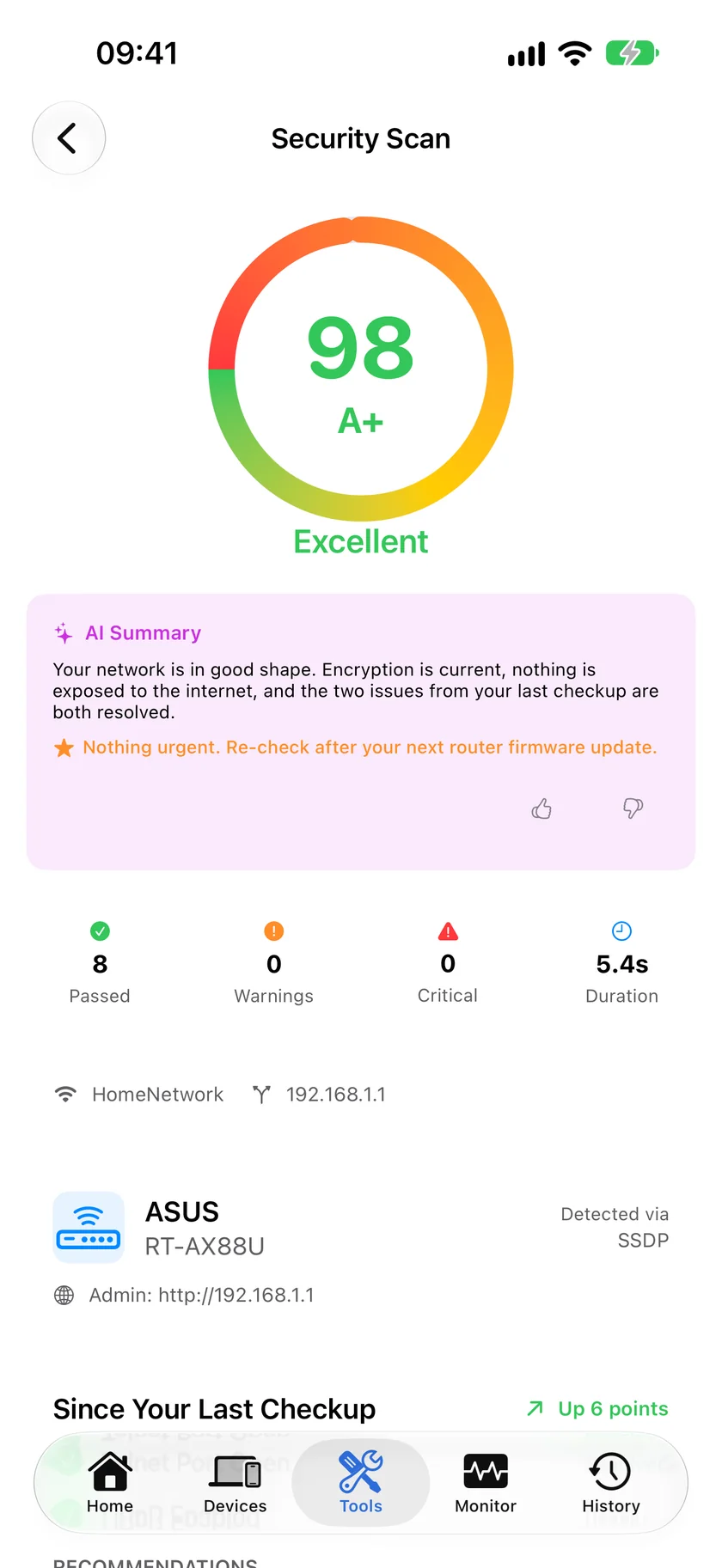
A score, then the findings behind it. The summary is written for someone who has to decide what to do, not to be scored on.
Ask Siri. Say "Check my network with PingKit" and the scan runs without you opening the app first. The phrase is registered when PingKit is installed, so there is nothing to set up, and the answer comes back without the app opening.
Security Findings
Discovers open ports, exposed services, and common misconfigurations across every device on your network. Catches issues that most users would never find on their own.
Security Score
Get a clear 0-100 score for your network's security posture. Track how your score improves as you address findings and harden your configuration.
AI Explanations
The AI explanation of each finding is free, and says in plain language what it means, why it is risky, and how to fix it step by step.
Actionable Fixes
Every finding comes with a severity rating and a recommended action. No vague warnings - specific guidance like "disable UPnP on your router" or "change the default admin password."
When to Run a Security Scan
Home Network Audit
If you have never scanned your home network, you should. Most consumer routers ship with settings optimized for convenience, not security. UPnP enabled, remote management on, admin password still set to "admin." A single scan reveals all of this and gives you a prioritized list of what to fix first.
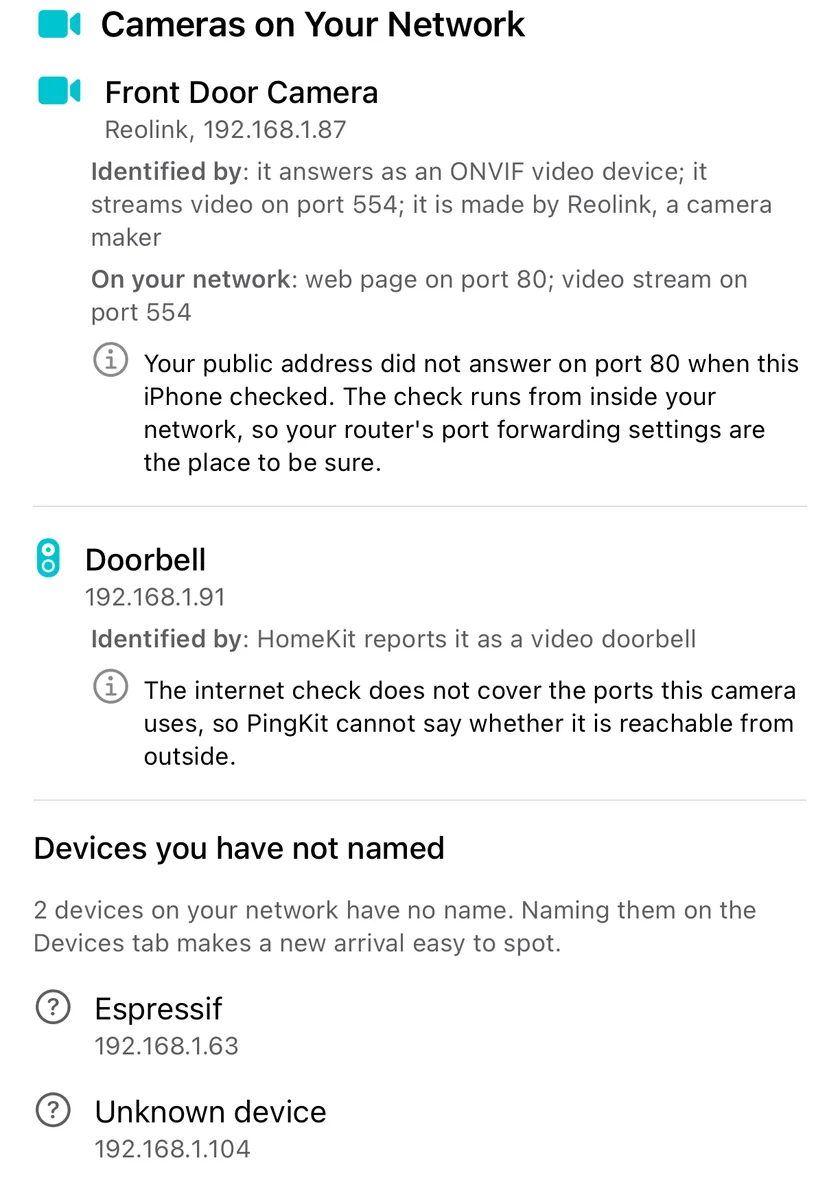
With Guardian the scan ends with the cameras on your network, how each was recognised, and which of its ports are open at home.
Smart Home Security
Every smart bulb, camera, thermostat, and speaker is a computer on your network. Many of these devices run web servers, have open telnet ports, or broadcast services they should not. PingKit finds devices you may have forgotten about and shows you what they are exposing. If your security camera has an open HTTP port with no authentication, you want to know about it.
After Router Setup
Just installed a new router or changed your network configuration? Run a security scan immediately. New routers often have default settings that prioritize ease of setup over security. A scan after configuration catches anything you missed and confirms your security settings are actually applied.
Regular Security Checks
Networks change over time. New devices join, firmware updates alter settings, and services get enabled without your knowledge. Running a monthly security scan takes a few minutes and catches drift before it becomes a problem. With the free Mac companion app, this can even happen automatically with alerts sent to your phone.
What the Twenty Checks Cover
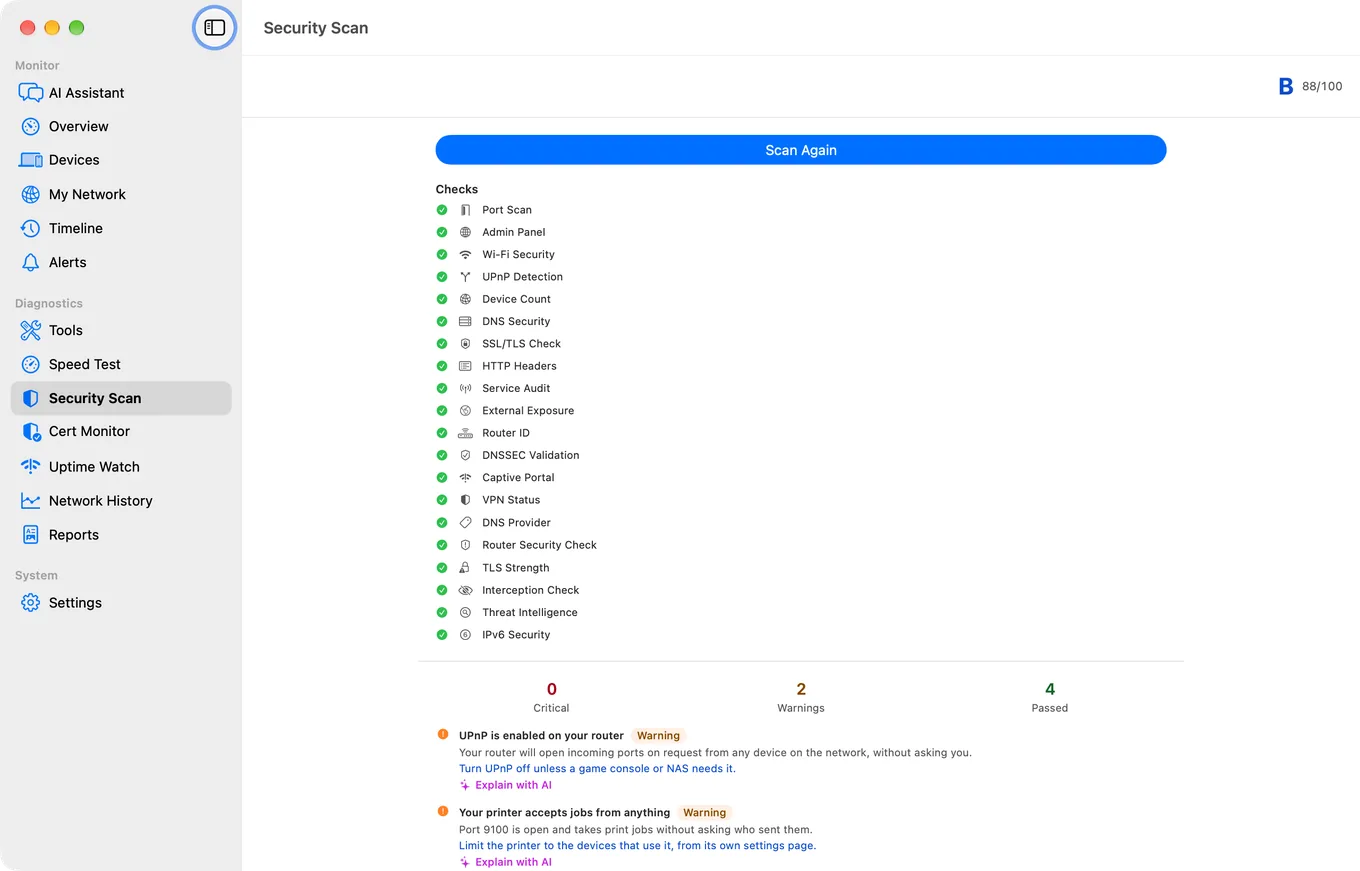
The scan runs twenty checks, grouped into twelve areas. Each one is an ordinary connection attempt, an ICMP echo or a discovery query. Nothing tries to get into anything, and nothing is attempted against a host you do not own.
Your Wi-Fi. How the network you are joined to is secured, and whether that is still a reasonable choice.
Open ports and the services behind them. What the devices on your network are listening on, and which of those are things you would not choose to expose. An open port is not automatically a problem; a printer's web interface reachable from every device in the house is worth knowing about.
Admin access. Whether management interfaces are reachable, and whether they are protected.
DNS. Which resolver your network hands out, whether it is one you chose, and whether DNSSEC validation is in play.
Certificates and TLS. Whether the encrypted connections your network makes hold up.
Interception. Signs that traffic is being redirected or inspected between you and the internet, which is the check that matters most on a network you did not set up.
Router identification and known weak defaults. What make and model is serving your network, and the settings that ship badly on it.
How your network looks from outside. Two checks, described in detail in the questions below, that examine your own public address rather than your LAN. They are the only part of the scan that leaves your network, they are skipped when the public address is not yours, and nothing about your devices is included in them.
How the Score Is Calculated
Every area starts at 100. A Critical finding takes 50 points off that area, a Warning takes 25, and an Info takes 5. The number on screen is the weighted average across the areas, with more weight on the ones that carry more real risk.
One detail is worth knowing because it prevents a misreading. An area the scan could not measure is dropped from the average rather than scored as a pass. Without that, a scan where the outbound checks were skipped would report a better score than one where they ran and found nothing, which is exactly backwards: not looking is not the same as looking and finding nothing.
Treat the score as a way of tracking your own network over time rather than as a grade against everyone else's. Fix the Criticals, decide which Warnings you actually care about, and watch the number after a router change. A 100 means the checks that ran found nothing, not that your network is unbreakable.
Severity is assigned by what the finding lets someone do, not by how alarming it sounds. Default admin credentials on a reachable interface is Critical because it is a complete compromise of the device by anyone already on the network. An unusual open port is a Warning, because it needs something else to be true before it matters. Info is context worth having.
Security in Context
The security scan works alongside PingKit's other 18 tools. Use the Device Scanner to see every device on your network and verify you recognize them all. Run Port Scanner against specific hosts for a deeper audit. Check DNS settings with the DNS Lookup tool to ensure you are not using a compromised resolver. Together, these tools give you a comprehensive view of your network's security that goes far beyond what any single scan provides.
The checkup history below, the Fix It walkthrough, the Mac Agent's monitoring and alert history on your iPhone, and AI answers from Apple Private Cloud Compute. $2.99 a month or $24.99 a year on iPhone and Mac, with a 1-week free trial. How it compares with Fing Premium.
Noxen - our sister Mac app - runs nightly security audits on remote Linux/VPS fleets: SSH config, TLS, open ports, and CVE matching. Same team as PingKit.
The free checkup answers "what is my network doing right now?", in full, and keeps doing so: the score, every finding, the severity ratings, the router identification and the per-brand recommendations all stay free and unchanged. Guardian answers the questions that only make sense over time.
The same scan on the Mac, running unattended. The findings carry the fix, not just the severity.
Since your last checkup
What is new, what you fixed, and which findings got worse, compared against the last checkup of the same network. Score movement included. This is the part that is still worth having in month three.
Which devices this affects
Findings are network-level by nature. Guardian ties each one to the device behind it, and lists other devices on your network answering on a remote-access or file-sharing port. It names a device only where the evidence supports it, never by guessing.
Fix It walkthrough
An ordered checklist for the exact router that was identified, with the settings that match your actual findings pushed to the top and your progress saved between scans. Works offline and needs no AI at all.
Re-check on open
Optional, and off until you turn it on. When you open PingKit and the last checkup is more than six hours old, it runs again and shows what moved. Nothing runs while PingKit is closed: iOS does not allow background network checks.
Cameras on your network
Guardian adds a section to the checkup that lists every camera on your network and says how PingKit knows it is one: HomeKit reporting a camera or a video doorbell, a camera maker's own Bonjour service (Wyze), or the device classifier's verdict. Port 554, the usual port for a live video stream, and a camera maker's name count as supporting evidence only, because a recorder on a NAS answers on 554 too.
For each camera you see what it serves on your network (a video stream on 554, or a web page) and one line about your public address: whether it answers on a port that camera also uses, which is the pattern worth checking in your router's port forwarding. The check tries your own public address from your iPhone on seven ports, and 554 is not one of them, so when a camera's ports are not among those seven PingKit says the check does not cover them rather than calling the camera unreachable. The scan does not read your router's forwarding table, and a check made from inside your network is not a perfect stand-in for the internet, so a match is a prompt to look in the router, not proof. With Guardian, Router mode reads the forwards your router lists over UPnP, which is where a camera that opened its own port shows up.
Beside it is a list of the devices you have not named: everything with no name from you and none from the network, shown with its maker or type and its address. Naming the ones you recognise on the Devices tab leaves a short list worth re-checking. The section runs as part of the Security Scan, when you run it, on an iPhone joined to your own Wi-Fi. With Guardian Plus, the Mac Agent also raises a "New Camera on Your Network" alert when a camera joins. Finding the cameras on your network covers it in full.
Guardian is $2.99 a month or $24.99 a year on iPhone and iPad, with a one-week free trial on both plans. The history, device and Fix It additions shipped in PingKit 2.1; the cameras section was added in PingKit 3.1.
Open PingKit, choose Security Scan and run it. It works through 20 checks on your own network: 23 well-known ports on your router, its admin interface, TLS and security headers, UPnP, DNS and DNSSEC, IPv6, plus a timed sweep of the devices present, which is why a run takes about a minute rather than seconds. You get a score out of 100 with a letter grade, every finding with a severity, and a specific fix for each one. One check cannot run on iPhone at all: iOS does not share Wi-Fi network details with apps, so the encryption-type check reports Unknown and points you at your router settings, and on cellular the two checks that look at your public address are skipped as well.
What does PingKit's security scan check for?
Twenty checks, most of them aimed at the router the network runs on: which ports it has open, whether its admin page is reachable and whether that page uses HTTPS, its security headers and the TLS it negotiates, UPnP, the known weak settings of the brand it identifies, your DNS resolver and whether DNSSEC validates, IPv6, VPN and captive-portal state, the Bonjour services being advertised, and a sweep of the devices on the LAN. Two of the twenty look at your own public address instead: one connects to seven common ports on it to see what answers from the internet, the other asks a public exposure database what it already lists for that address, and both are skipped on cellular, where the address belongs to your carrier rather than to you. Each finding carries a severity of Critical, Warning, Info or Pass, a description and a specific recommended action, and a check that could not run is marked Unknown rather than quietly counted as a pass. On iPhone one check always lands there: iOS does not tell an app what encryption your Wi-Fi uses, so PingKit reports it as unknown and points you at your router settings instead.
Is it safe to run a security scan on my home network?
Yes. Every probe is an ordinary connection attempt, an ICMP echo or a discovery query, and none of them try to get into anything. Two of the 20 checks do deliberately look at your network from the outside: PingKit looks up your public IP, probes seven ports on that one address to see what your router exposes to the internet, and sends the same address to Shodan's InternetDB to read what its scanners have already recorded. Both are skipped on cellular, where the public address belongs to your carrier rather than to you, and neither sends anything about the devices on your network.
What is a good network security score?
PingKit scores 0 to 100 where higher is better, and grades it: 95 and above is A+, 90 to 94 an A, 80 to 89 a B, 70 to 79 a C, 60 to 69 a D and below 60 an F. The score is a weighted average across categories, with a critical finding costing its category 50 points, a warning 25 and an informational note 5. A category where nothing could be measured is dropped from the average rather than awarded full marks, so a scan that could not run some checks says so instead of flattering you. Treat 80 or better as a well-configured home network, and read the critical findings first whatever the number says.
What does PingKit Guardian add to the security scan?
The checkup itself stays free and complete: the score, every finding, the severity ratings, the router identification and its per-brand recommendations. AI explanations are free too: answers written on your iPhone itself are unlimited, and PingKit's own service adds 15 a week capped at 5 a day when your iPhone cannot answer alone. Guardian adds Apple Private Cloud Compute. What Guardian actually adds is everything that depends on history: what changed since your last checkup of the same network, which device each finding belongs to, an ordered fix walkthrough for the router that was identified with your progress saved between scans, and an optional re-check when you open the app if the last one is over six hours old.
Can PingKit show me which cameras are on my network?
Yes, with Guardian. The Security Scan gains a Cameras on Your Network section that lists every camera and video doorbell it can identify, how it identified each one (HomeKit, a camera maker's own service, or the device classifier), what each serves on your network, and whether your own public address answers on one of that camera's ports. The check of your public address tries seven ports and not 554, the usual video stream port, so where it cannot tell it says so. Without Guardian, cameras still appear in the Devices list with their type.
Check your network security.
Download PingKit free and find out what your network is exposing.