Is Your Security Camera Reachable from the Internet? How to Check
Short version. A camera on your network is reachable from the internet only if your router lets a connection through to it, which happens through a port forwarding rule someone set up or one the camera opened itself with UPnP. So the check has two halves. First find the cameras on your network and the ports each one uses, which PingKit's Security Scan does from your iPhone (the cameras section needs Guardian). Then look at your router's port forwarding and UPnP pages for any rule that points at one of them. PingKit also tells you when your own public address answers on a port a camera uses, but it cannot read the router's table, it tries the address from inside your network, and it does not test port 554, so the router is where you confirm it.
How a Camera Ends Up on the Internet
A home router does not let unsolicited connections in. Something has to open a path, and for cameras there are three usual ways:
- A port forwarding rule. Whoever set the camera up, often an installer, forwarded a port so the viewing app could connect from outside. The rule stays long after anyone remembers it.
- UPnP. The camera or its recorder asked the router to open a port automatically, and the router agreed. Nobody chose it, which is why it is easy to miss (what UPnP is, and whether to turn it off).
- A DMZ setting. The router sends everything it does not recognise to one device. Rare, but it forwards every port at once.
Most current cloud cameras do not need any of this. They connect out to their maker's cloud, and you view them through it, so nothing needs to be forwarded. The cameras worth checking are the ones set up for direct access: many recorders and IP cameras from the Hikvision, Dahua and XMEye families, and older cameras of any brand.
Step 1: Find the Cameras on Your Network
You cannot check a camera you do not know about, and on a network with forty devices it is easy to lose one. On your iPhone, joined to your own Wi-Fi, run PingKit's Security Scan. With Guardian, the result includes Cameras on Your Network: every camera and video doorbell PingKit could identify from HomeKit, a camera maker's own service or the device classifier, with its local address.
Beside it is a list of the devices you have not named. A camera that announces nothing about itself tends to show up there, as an unnamed device with a maker's name, so work through that list too. Finding the cameras on your network explains how PingKit decides what counts as a camera.
Step 2: Note the Ports Each Camera Uses
Each camera's entry says what it serves on your network among the ports the scan checks: a video stream on 554, or a web page on 80, 443, 8080 or 8443. These, and a few maker-specific ports the scan does not check, are the ones that matter if they are forwarded:
| Port | What it usually is |
|---|---|
| 554 | RTSP, the live video stream |
| 80, 443, 8080, 8443 | The camera's web page, usually its settings and login |
| 8000 | Hikvision's own service, used by its apps and recorders |
| 37777 | Dahua's own service |
| 34567 | The XMEye family of recorders |
Step 3: Read What PingKit Says About the Internet
The Security Scan also tries your own public address, and only yours, from your iPhone on seven ports: 22, 23, 80, 443, 3389, 5900 and 8080. For each camera it compares that result with the camera's ports and gives one of four answers:
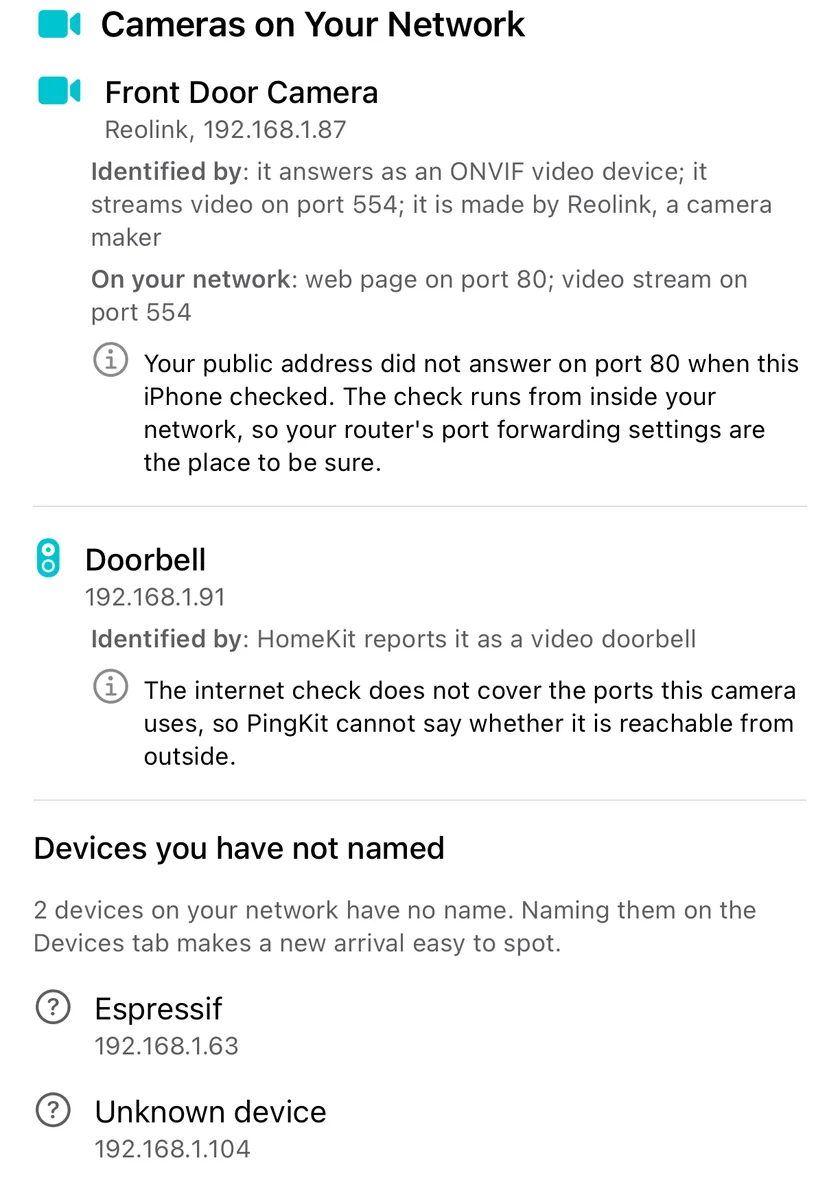
- Your public address answers on a port this camera also uses. Worth checking straight away. It does not prove the port is forwarded to the camera, since another device or the router itself may be answering (many routers answer their own public address from inside the network), but it is the pattern that forwarding produces.
- Your public address does not answer on the camera's ports. The check covered at least one of them and nothing answered. A router that does not loop connections back to itself can hide a forwarded port from a check made inside the network, so this is not the last word.
- The check does not cover this camera's ports. Most often a camera that only streams on 554, which is not one of the seven. PingKit cannot tell either way, and says so rather than calling the camera unreachable.
- Not checked on this scan. PingKit could not find your public address, or the check was interrupted before it finished.
Whatever the answer, your router's forwarding and UPnP tables are where you confirm it.
Step 4: Check Your Router's Forwarding and UPnP Tables
Open your router's admin page (usually the gateway address PingKit's My Network shows, such as 192.168.1.1) and look in two places:
- Port forwarding (sometimes Virtual Server, NAT or Applications). Every rule lists an outside port and the local address it goes to. Compare each local address with the cameras from Step 1.
- UPnP. Most routers show a table of the ports devices have opened for themselves. A camera or recorder address in that table has opened its own path in.
With Guardian, PingKit's Router mode reads the second of those lists from your iPhone: every forward your router holds over UPnP, the address it points at and what the port is usually for, with a note beside 554. A rule someone typed in by hand is only in the router's own page, so look there too.
If a rule points at a camera, it is reachable from the internet on that port by anyone who finds it, and its login page is the only thing standing in the way.
Step 5: Close What You Do Not Need
- Delete forwarding rules for cameras you view through the maker's app or cloud. Check the app still works afterwards; for most current cameras it will.
- Turn off UPnP if nothing on your network needs it, or at least check the table again after adding a new camera.
- Use a VPN into your home network, if your router supports one, when you do want direct access from outside.
- Change the default password and update the firmware on every camera, forwarded or not. Anything already on your network can reach it.
Then check your router's tables again: they are the proof. Running the Security Scan again is a useful second look.
What This Cannot Tell You
- Whether a camera's cloud account is secure. Cloud-connected cameras are reached through their maker's service, not through your router.
- Anything about a network you do not own. PingKit only scans the network your iPhone is joined to and only checks your own public address.
- Changes while you are not looking. The iPhone builds the list when you run the scan. With a Mac that stays on at home, PingKit Agent watches the network continuously, and with Guardian Plus a camera that joins raises a New Camera on Your Network alert.
Frequently Asked Questions
How do I know if my security camera is accessible from the internet?
Look for a port forwarding or UPnP rule in your router that points at the camera's local address. PingKit's Security Scan helps you find the cameras on your network and their ports, and tells you when your own public address, tried from your iPhone, answers on a port a camera uses, but the router's forwarding and UPnP tables are the definitive answer.
Which ports do IP cameras use?
Commonly 554 for the RTSP video stream, 80, 443, 8080 or 8443 for the camera's web page, 8000 for Hikvision's own service, 37777 for Dahua's and 34567 for XMEye recorders. A forwarding rule for any of these to a camera's address puts that service on the internet.
Does PingKit check port 554 from the internet?
No. The check tries seven ports on your own public address: 22, 23, 80, 443, 3389, 5900 and 8080. For a camera that only uses ports outside that set, such as 554, PingKit says the check does not cover them rather than claiming the camera is unreachable.
Do I need port forwarding to view my camera away from home?
Usually not. Most current cameras connect out to their maker's cloud and you view them through its app, which needs no forwarded port. Remove old forwarding rules and check the app still works; for direct access, a VPN into your home network is the safer route.
Is the cameras section free?
The Security Scan and the Devices list, which shows cameras with their type, are free. The Cameras on Your Network section, with how each camera was identified, its ports and the internet line, is part of PingKit Guardian, $2.99 a month or $24.99 a year with a 1-week free trial.
Find the cameras on your network.
The Security Scan is free. Guardian adds Cameras on Your Network and the devices you have not named: $2.99 a month or $24.99 a year, with a 1-week free trial.
Download PingKit for iPhone