How to See What Devices Are Connected to Your Wi-Fi on iPhone
Short version. iOS has no screen that lists the other devices on your Wi-Fi, so on an iPhone you see what is connected in one of two ways: a LAN scan app, or your router. PingKit's Devices tab is free: it scans your own network when you open it and lists each device that answers, with its IP address and a name from what the device announces (Bonjour, UPnP, NetBIOS). On iOS 27 and later it also shows most devices' MAC address and chip maker. Your router's app or admin page lists the devices that took an address from it, including some that do not answer a scan, and it is the only place you can remove one.
The LAN scan on the Devices tab is free, with all 19 tools. No ads, no account.
Full disclosure: I build PingKit, so weigh the recommendation accordingly. The router method below needs no app at all, and it sees some things a phone cannot. If you are after one particular device, such as a printer or a camera whose IP address you need, How to Find All Devices on Your WiFi Network is the better guide; this one is about who and what is on your Wi-Fi.
What Your iPhone Shows on Its Own
Less than you would hope. iOS has no screen that lists the other devices on your Wi-Fi. Open Settings, Wi-Fi, and tap the (i) next to your network: you see this iPhone's own IP address, the subnet mask, the Router address and the Private Wi-Fi Address setting, all of it about your iPhone and none of it about anything else. The Home app lists the HomeKit and Matter accessories you have added yourself, not whatever else has joined.
That Router line is still worth a note, because it is the address of your router's admin page in method 2. To see the rest of the network from an iPhone, you need an app that looks, or the router that hands out the addresses.
Method 1: Scan Your Wi-Fi With PingKit (Free)
A LAN scan asks each address on your network whether something is there and lists what answers. PingKit's LAN scan is the Devices tab, and it is free, like all 19 tools, with no ads and no account.
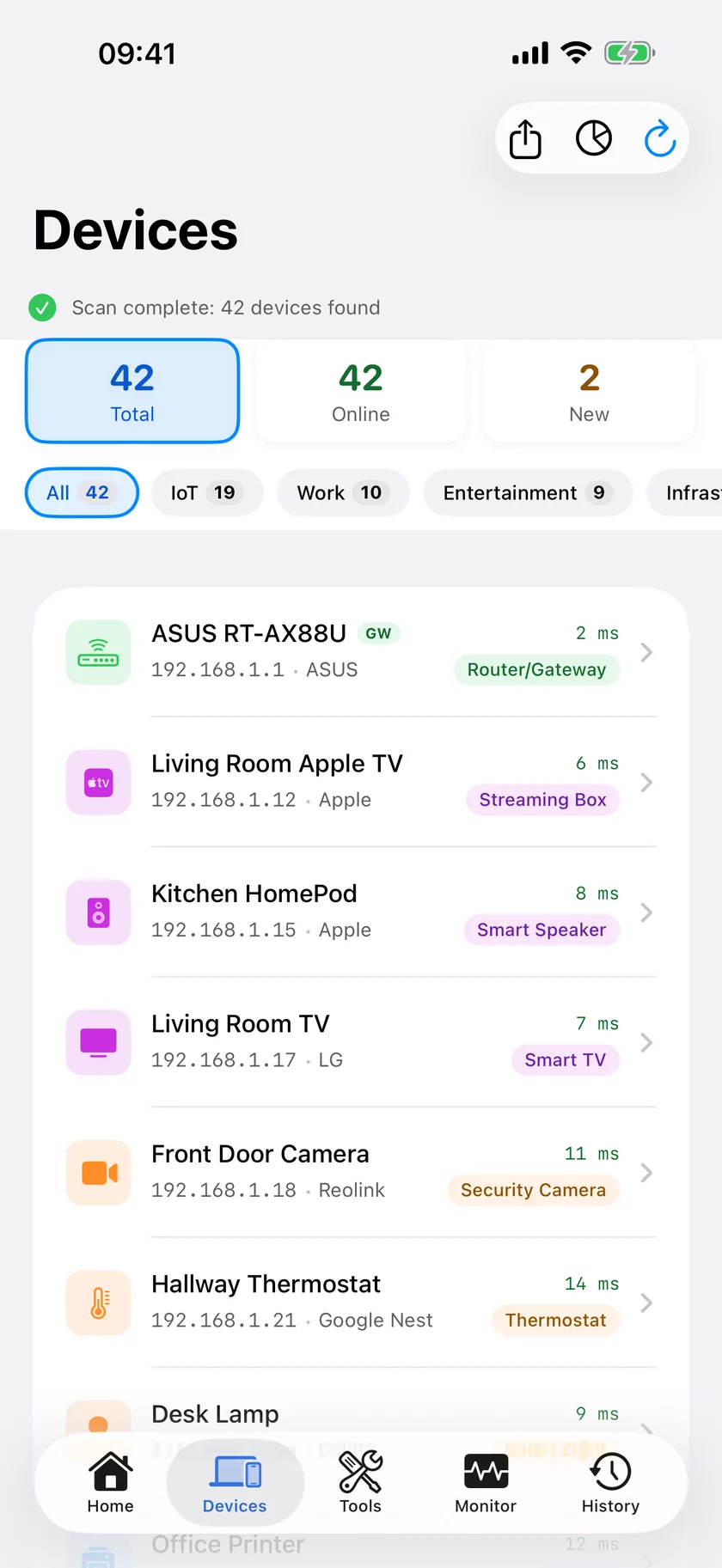
- Install PingKit and join your Wi-Fi. The scan covers the network your iPhone is on, so be at home on your own Wi-Fi, not on mobile data.
- Open the Devices tab. The scan starts by itself. The first time, iOS asks whether PingKit may find devices on your local network: tap Allow, because without it iOS lets no app see your network. If Local Network access is off, the Devices tab says so and links to Settings instead of showing an empty list.
- Watch the list fill. Devices appear as they answer. A network with up to 1,022 addresses (a /22 or smaller, which covers the usual home /24 with 254) is scanned in one pass; on a larger network PingKit scans the 254 addresses around your iPhone and tells you so.
Each row shows the device's IP address and the best name PingKit can find for it, from what the device announces about itself: Bonjour (how AirPlay speakers, printers and Macs name themselves), UPnP, NetBIOS, SNMP, and hostname and service patterns. PingKit also asks an unnamed device directly for the name it announces, so many plugs, bulbs and TVs get one. Your router is marked as the gateway, and your own iPhone is in the list too.
What else the iPhone can show depends on the iOS version. On iOS 27 and later, PingKit shows the MAC address of most devices and, where that address is not a private one, the maker of the network chip. On iOS 17 to 26, iOS hides other devices' hardware addresses from apps, so PingKit shows one only for a device that answers NetBIOS, such as a Mac with File Sharing turned on, and names the rest from what they announce.
The list includes devices that answer but keep every port closed, which is most phones and laptops. A device that ignores ping, drops every connection and announces nothing can still be missing, and if only your router answers, PingKit tells you the Wi-Fi may be keeping devices apart, which is common on guest networks. Your router's own list is the second opinion for both.
Your own network only. Scan a network you own or look after, such as your home Wi-Fi. On a hotel, office or café network, ask whoever runs it.
The LAN scan on the Devices tab is free on iPhone, with all 19 tools, no ads and no account.
Reading the List: Who Is Actually on Your Wi-Fi
The scan tells you what is connected. Working out whose each device is takes a minute of matching.
- Start with the names. "Living Room", "Office Printer" or someone's iPhone settles most rows straight away.
- Then the makers. Amazon is usually an Echo or a Fire TV; Espressif and Tuya make the chips inside many smart plugs and bulbs; Sonos, Roku and Philips Hue name themselves.
- Count what you own. Phones, tablets, laptops, the TV, a console, speakers, the printer, a thermostat, a doorbell, the smart plugs. Most homes have more than people guess, and that count usually explains a list that looked too long.
- Rename what you recognise. Tap a device to give it your own name. PingKit keeps that name on your network when the device's IP address changes, as long as the device announces a name or identifier, so the next scan reads like a list of your things.
Expect a few rows you cannot place at first. Phones, tablets and laptops join with a private Wi-Fi address that can change, so your own devices can look like strangers; why your iPhone uses a private Wi-Fi address explains it. Most naming runs on your iPhone and is free. With Guardian, $2.99 a month or $24.99 a year on iPhone with a 1-week free trial, PingKit can also send what an unrecognised device gives off to its own AI service for a name, once you allow it.
Method 2: Your Router's App or Admin Page
Every device on your Wi-Fi asks the router for an address, so the router's list includes devices that ignore a scan. It is also the only place you can remove one.
- A router or mesh app. If your Wi-Fi came with an app, such as eero, Google Home for Nest Wifi, TP-Link Deco, Netgear Orbi or your provider's own app, the connected devices are usually one tap from its home screen, and many of these apps can pause or block a device.
- The admin page. Type the Router address from Settings, Wi-Fi, (i) into Safari, often 192.168.1.1 or 192.168.0.1, and sign in with the admin password, which is often on a sticker on the router. Look for a page called Connected Devices, Attached Devices, Device List or DHCP Clients. The 192.168.1.1 login guide helps if the page will not open.
Router lists have blind spots of their own. Many show a MAC address and a bare hostname and nothing else, and some keep a device on the list for as long as its address lease lasts, after it has gone. That is why the two methods work best together: the scan names what is there now, and the router confirms it.
Found a Device You Do Not Recognise?
- Make sure it is not yours. Switch devices off one at a time and scan again, or look the row up in your router's app. A forgotten tablet or a guest's phone is the usual answer.
- Change the Wi-Fi password. It removes everyone you do not give the new password to. Reconnect your own devices afterwards.
- Use WPA3, or at least WPA2, and turn off WPS in the router's settings.
- Give visitors a guest network, so the next guest's phone is not on the network your own devices use.
Is someone stealing my WiFi? goes through the signs and the fixes in more detail.
Knowing When Something New Joins
A scan answers "who is on my Wi-Fi right now". It cannot tell you about the device that joined at 2am, because iOS does not let an app keep scanning in the background. For that, something has to stay on and keep watching:
- Your router, if its app sends a notification when a new device joins. Many mesh systems do.
- PingKit Agent for Mac, free, which keeps scanning your network while your Mac is awake and alerts you when a new device joins, after a first 24 hours spent learning the devices you already have. Its alerts reach your iPhone as notifications, free; Guardian adds the alert history and the Mac's device list in the iPhone app. While the Mac sleeps, nothing is watched.
- PingKit Agent on a Raspberry Pi, NAS or Docker host that stays on, if you want the same without a Mac.
Get an alert when a new device joins your WiFi compares the three.
Frequently Asked Questions
How do I see what devices are connected to my Wi-Fi on iPhone?
iOS has no built-in list, so use a LAN scan app or your router. In PingKit, open the Devices tab while you are on your home Wi-Fi and allow Local Network access: the free scan lists each device that answers, with its IP address and a name from what it announces. Your router's app or admin page lists the devices that took an address from it.
Can I see who is on my Wi-Fi in the iPhone's Settings?
No. Settings, Wi-Fi, the (i) next to your network shows only your own iPhone's details: its IP address, the router's address and its private Wi-Fi address. The router's address is still useful: typed into Safari, it opens your router's admin page, which has the list.
Why does the scan show devices I do not recognise?
Most turn out to be your own: a smart plug, the TV, a printer, or a phone whose private Wi-Fi address changed. Check the names and makers, count what you own, and compare with your router's list. If one is still unaccounted for, change the Wi-Fi password.
Does PingKit show MAC addresses on iPhone?
On iOS 27 and later, yes, for most devices, with the maker of the network chip where the address is not a private one. On iOS 17 to 26, iOS hides other devices' hardware addresses from apps, so PingKit shows one only for a device that answers NetBIOS, such as a Mac with File Sharing turned on. Your router's list shows them on any iOS version.
Can I kick someone off my Wi-Fi from my iPhone?
Not with a scanning app: no scanning app can remove a device from your network. Your router can. Block or pause the device in its app or admin page, or change the Wi-Fi password, which removes everyone who does not have the new one.
Will PingKit tell me when a new device joins my Wi-Fi?
Not from the iPhone alone, because iOS does not let an app keep scanning in the background. PingKit Agent for Mac does it, free, while your Mac is awake, and its alerts reach your iPhone as notifications, free. A Raspberry Pi, NAS or Docker host that stays on can run PingKit Agent instead.
Is PingKit's Wi-Fi scan free?
Yes. The LAN scan and all 19 tools are free, with no ads and no account. Guardian, $2.99 a month or $24.99 a year on iPhone with a 1-week free trial, adds AI naming for the devices PingKit cannot recognise on its own and puts the Mac Agent's device list and alert history in the iPhone app.
See who is on your Wi-Fi.
Open the Devices tab and PingKit lists what answers on your own network, named from what each device announces, with most MAC addresses on iOS 27 and later. Free, with no ads and no account.
Download Free on the App StoreRelated Articles
- How to Find All Devices on Your WiFi Network
- Is Someone Stealing My WiFi? How to Find Out
- How to Detect Unknown Devices on Your WiFi Network
- Get an Alert When a New Device Joins Your WiFi (2026)
- iPhone Private WiFi Address: Fixed vs Rotating, On or Off
- How to See Every Device on Your Network from a Mac (2026)
- LAN Scanner for iPhone

PingKit for iPhone
All 19 tools free. No ads, no account required.
Download Free on the App StoreGuardian adds more monitoring and your Mac's history on your iPhone: $2.99 a month or $24.99 a year on iPhone or Mac, with a 1-week free trial.