How to Keep a History of Your Internet Speed on iPhone (and Why the Phone Can't Do It Alone)
Short version. Your iPhone cannot run a speed test on a schedule: iOS does not let an app do sustained network work in the background, and no listing that says otherwise is telling you the truth. What you can do: log every manual test in PingKit's free, unlimited History; let the free PingKit Agent on a Mac run a test every 24 hours, or every few hours if you set it so; and, with Guardian ($2.99 a month on iPhone or Mac), see those results and the trend charts on your iPhone.
Why the Phone Cannot Do It Alone
A speed test moves a lot of data for ten or twenty seconds. iOS lets an app do that while it is on screen and for a few seconds after, then suspends it. There is no API for "wake up at 3am and run a download". Background App Refresh gives an app a moment to fetch a small update at a time iOS chooses, which is neither a schedule nor enough time for a test. Shortcuts automations can open an app on a timer, but they cannot keep it running unattended, and a phone in a pocket or on a bedside table is not where you want a full-throughput test running anyway.
So any promise of "automatic speed tests" on an iPhone comes from somewhere else: a router with a built-in test, a computer on the network, or a service testing from outside your house, which measures its connection, not yours. This guide uses the computer.
Step 1: Log Every Manual Test
PingKit's speed test records every run in History: download, upload, latency, the server used, and which network you were on. History is free and unlimited, with no subscription, so the tests you run when the connection feels slow build a record on their own. It is a sparse record, biased towards bad moments because those are when you think to test, and that bias is worth remembering when you read it back. How it compares with the other speed test apps for iPhone is covered in its own roundup.
Step 2: Put a Mac on the Job
The free PingKit Agent for Mac runs speed tests on a schedule. In its settings, "Run Every" sets the interval in hours; the default is 24, and every few hours is fine on an unmetered connection. Each result is logged with a timestamp and shown on the Agent's Timeline next to the connection drops and device events from the same period, which is what turns "it was slow last night" into "download fell to 41 Mbps at 21:00 for the third Tuesday running". This costs nothing: scheduled speed tests, the timeline and the alerts are all free on the Mac.
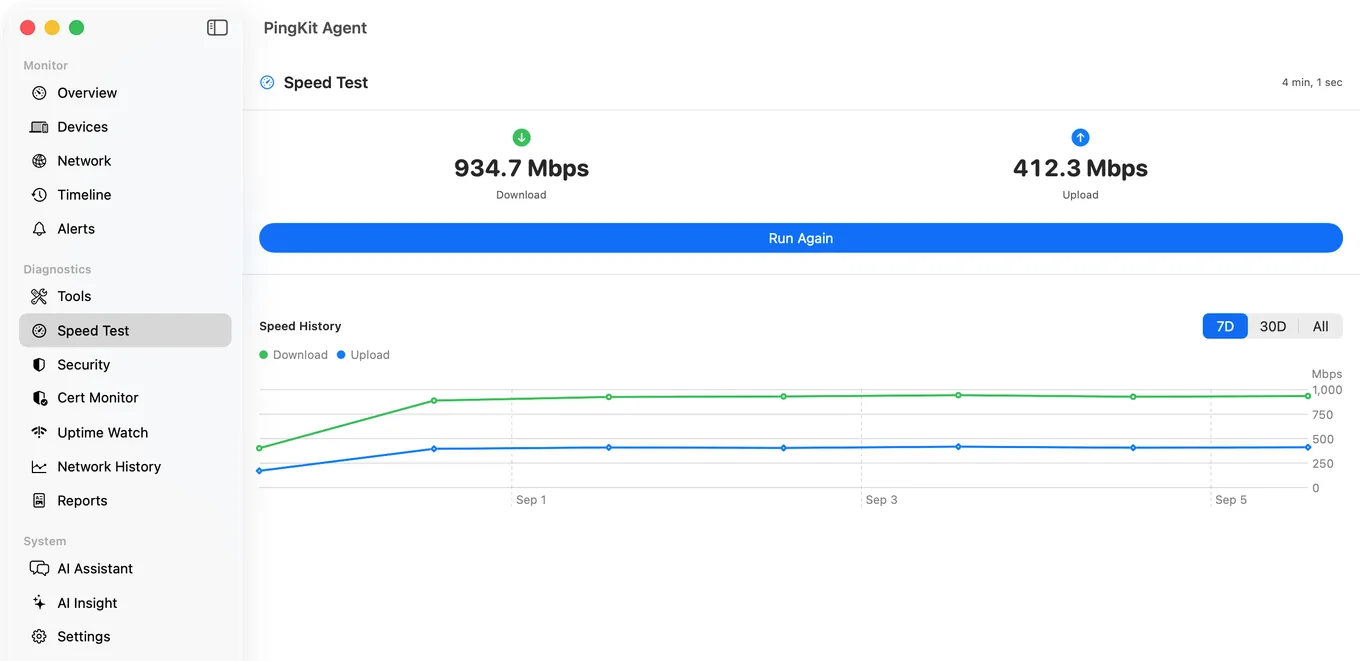
The Mac has to be on. A MacBook lid closed on a desk is asleep, and a sleeping Mac runs nothing. A Mac mini, an iMac or a laptop set to stay awake while plugged in is the usual answer. The test measures the Mac's connection, so a Mac on Wi-Fi at the far end of the house measures that Wi-Fi as well as the internet; wired is cleaner for an ISP question.
Step 3: See It on Your iPhone
With PingKit Guardian on the phone, the Agent's scheduled results sync to the iPhone through your private iCloud and appear in the Monitor tab's Scheduled Speed Tests card. Guardian also adds Trends: download speed, internet latency and security score charted per network by day, with the change across the period, and a direction stated only once four days of readings exist. Guardian is $2.99 a month or $24.99 a year on iPhone or Mac, with a 1-week free trial, and it is the same subscription that puts the Agent's alert history and device list on the phone.
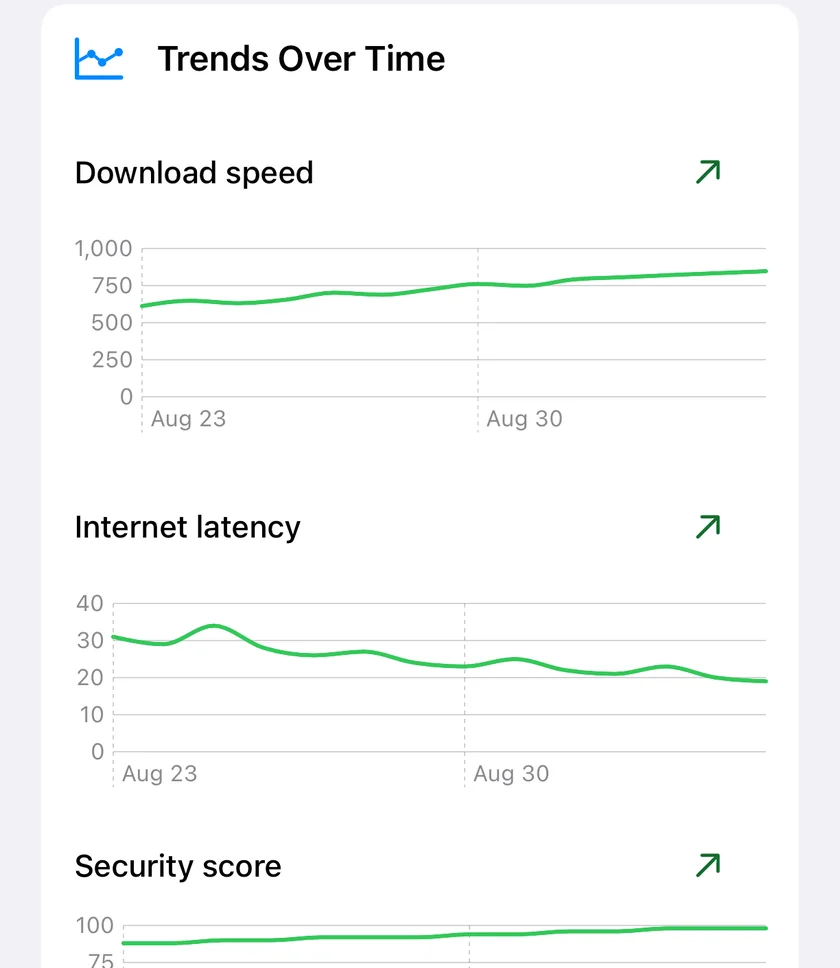
This is the one part that costs money, and it is worth being clear about what it is. The Mac does the work for free. Guardian is what lets the iPhone read the result.
What the History Is Good For
- An ISP conversation with numbers. A month of tests at 21:00 that all read a third of the advertised speed is an argument; "it feels slow at night" is not. How to build that evidence.
- Telling Wi-Fi from internet. If the wired Mac reads full speed at the moment the phone reads a quarter of it, the problem is inside the house.
- Noticing a change. A plan upgrade that never arrived, a modem that degraded after a storm, a neighbour's new access point on your channel. Trends show the step; a single test shows only today.
Honest Limits
- The iPhone never runs a test unattended, on any plan. Guardian shows results the Mac produced.
- The schedule is only as regular as the Mac is awake.
- A scheduled test uses bandwidth. Every hour on a metered or slow connection is a real cost; every 6 or 24 hours is plenty for a trend.
- Manual History is free and unlimited but only records the tests you chose to run, which are not a fair sample of your day.
Frequently Asked Questions
Can an iPhone app run a speed test automatically?
No. iOS suspends apps shortly after they leave the screen and provides no way to schedule sustained network work. Any automatic speed test history on an iPhone is produced somewhere else, such as a Mac running the free PingKit Agent, and synced to the phone.
How do I see my internet speed over time on iPhone?
Run PingKit's speed test whenever you like; every result is kept in the free, unlimited History. For a regular record, let the free PingKit Agent on a Mac run tests on a schedule while it is awake, and with Guardian ($2.99 a month on iPhone or Mac) the results and the trend charts appear on your iPhone.
How often does the Mac Agent run a speed test?
Every 24 hours by default. The interval is set in hours in the Agent's settings. It runs only while the Mac is awake.
Is the speed test history free?
On the iPhone, the History of manual tests is free and unlimited. On the Mac, scheduled tests and their timeline are free. Guardian is what syncs the Mac's scheduled results to the iPhone and adds the Trends charts.
Does the history prove my ISP is slow?
It shows what the Mac measured at the times it measured it, which is exactly what you need. Run the Mac wired if you can, so Wi-Fi is not the thing being measured, and let it collect a couple of weeks before drawing a conclusion.
See the history on your iPhone.
Free to download. Guardian is $2.99 a month or $24.99 a year on iPhone and on Mac, with a 1-week free trial on both plans. Cancel anytime. The Mac Agent is free on the Mac App Store.
Download PingKit for iPhone