Nintendo Switch Keeps Disconnecting From WiFi: Find the Cause
Short version. Before changing anything, find out which of two faults you have. Either the Switch is leaving the network on its own, or the internet is dropping for everything and the console is where you notice it. From an iPhone: read the console's address off its own Internet settings screen, ping it while it misbehaves, and run the Connection Monitor App for iPhone on the same Wi-Fi in the same room. A DHCP reservation and a move to a less crowded band, both set in the router, fix most of the first kind; the Switch's habit of dropping Wi-Fi in sleep accounts for a good share of the rest.
Ping, Connection Monitor and the LAN scan are free, with all 19 tools. No ads, no account.
Two Faults That Look Identical
A Switch that "keeps disconnecting" is one of two different problems:
- The console leaves the network. Its Wi-Fi drops, or its DHCP lease fails to renew, and nothing on the network can reach it for a while. Other devices in the same room are fine.
- The connection drops for everything. The console is simply the least tolerant device in the house, because an online match notices a three-second gap that a streaming buffer hides.
The Switch also has a third behaviour worth knowing before you start: it drops its Wi-Fi in sleep unless you have enabled the setting that keeps it connected, and a console that reconnects the moment you wake it is behaving as designed rather than failing. That is under System Settings › Sleep Mode, and it explains a good number of "it was offline all night" reports.
Step 1: Get Its Address, and Find It in a Scan
On the console, open System Settings › Internet › Connection Status and note the IP address. That screen is the authority on what the console thinks its address is.
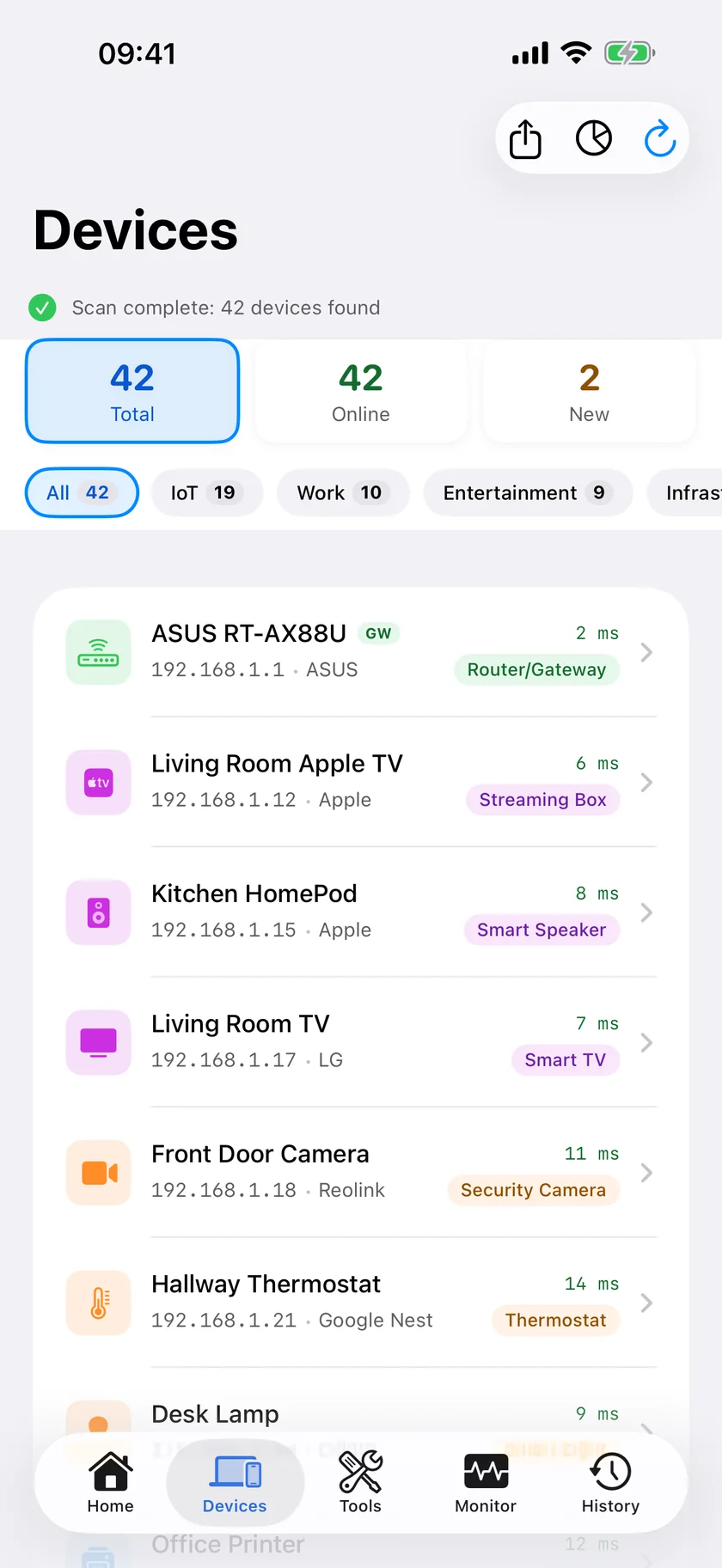
Now open PingKit on the iPhone, open the Devices tab, which scans as it appears; the circular arrow at the top right runs it again. Find that address in the list, and expect it to be thinly labelled. No classifier rule types a Switch as a games console, so it gets no category badge of its own. Whether it gets a name at all depends on what it publishes: if its hostname carries the word Nintendo, the row is titled Nintendo; if it publishes nothing useful, the row is an unnamed device with an address and nothing more. Match it by the address the console gave you, and then fix the naming once:
- Name This Device on the row sets a name that persists across every future scan.
- On an iPhone running iOS 27 where Apple Intelligence is available in your language, Identify With Camera photographs the label on the back of the console and reads the make, model and one printed identifier off it with the on-device model. The photograph is read on the iPhone and never leaves it. Use it on a device you have not named yet: it writes what it reads into the name field.
Ping, Connection Monitor and the LAN scan are free in PingKit, with no account and no ads.
Step 2: Ping It While It Is Dropping
Open Ping in the Tools tab, enter the console's address, set the count to 100, and run it while you are playing. That is one packet a second for a hundred seconds, and the result reports packet loss with minimum, average and maximum round-trip times.
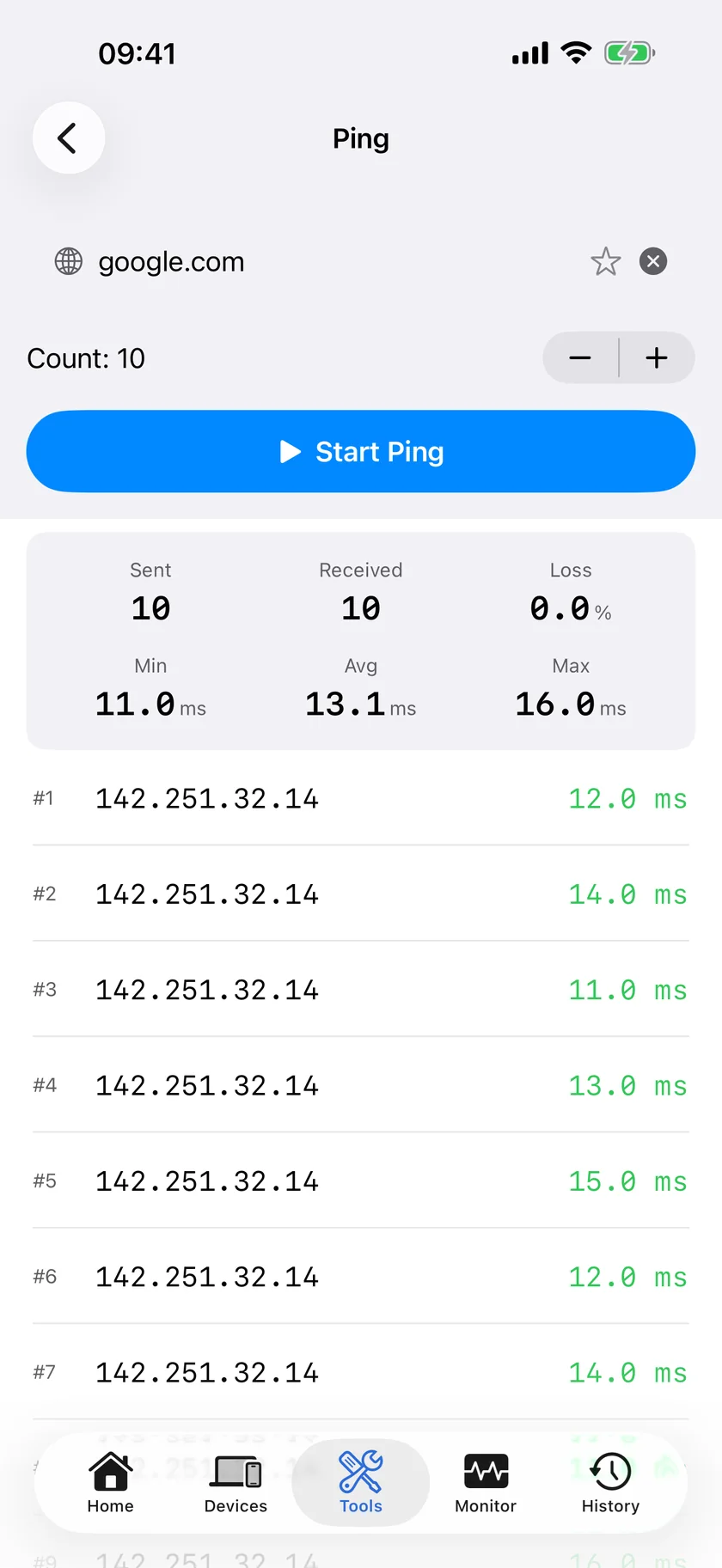
| Result | Reading |
|---|---|
| Replies throughout, little or no loss | The console stayed on the network. If the game still dropped, the fault is past your router, so go to step 3 |
| A run of timeouts, then replies | The console left the local network and rejoined. A console-side or Wi-Fi-side fault, not an ISP one |
| Nothing but timeouts | Wrong address, or the console has already taken a new one. Re-read the Connection Status screen, and reserve the address in the router |
Ping runs for the count you set and stops. There is no continuous mode, so this is a tool you point at a problem you can currently see rather than something you leave running all evening.
Step 3: Measure the Wi-Fi Itself
Put the iPhone on the same network as the Switch, in the same place in the house, and open the Monitor tab and tap Live Connection, which is the connection monitor. It probes once a second, keeps the last sixty points, and shows latency with jitter, packet loss and a stability score. Timeouts appear as red marks along the bottom of the graph rather than as breaks in the line.
It measures the path out to the internet by default. To test the local link instead, switch the target to Custom and use your router's address, which My Network reports.
- Loss or spikes against the router: the local Wi-Fi is the problem. Distance, walls and a crowded band are the usual reasons.
- Clean to the router, bad to the internet: the connection or the ISP is the problem, not the console.
Leaving the screen stops the measurement. On an iPhone this is a foreground tool by platform rule, so it measures while you watch.
The Two Router Settings That Fix Most of This
- Reserve the console's address. A DHCP reservation removes lease renewal as a cause and keeps any port forwarding pointed at the right device: How to Set a Static IP Address on Your Home Network.
- Deal with the band and the channel in the router. The 2.4 GHz band is crowded and the Switch is not the strongest radio in the house. Which band a device joins, and which channel the router uses, are router-side settings: iOS does not let an app read the band, channel or signal strength of the network the phone is on, so anything claiming to show you that on an iPhone is showing you something else. See 2.4 GHz vs 5 GHz. A wired connection removes the question: the OLED model's dock has an Ethernet port built in, and the original dock needs a USB Ethernet adapter.
Turning It Into a Record
An intermittent fault happens when nobody is measuring, and an iPhone cannot fix that: iOS does not let an app keep watching the network while it is closed. A Mac can. The free PingKit Agent scans every five minutes and checks the internet every thirty seconds on mains power, dropping to fifteen minutes and sixty seconds on battery, and marks a device offline after fifteen minutes unseen, so the console's drops become a list with times. Device Offline alerts are off by default: turn the Device Offline toggle on in the Agent's Settings under Device Alerts and, until the next Agent update, set Offline scans before alert, one section below under Alert Debouncing, to 1.
Device Offline on the console alone, with the internet up, is the console leaving. Internet Down at the same moments is the connection. PingKit Guardian puts both on the iPhone. The alert reaches the iPhone through your own private iCloud, which is one hop and best effort rather than instant.
Worth knowing. The Agent is free and the record is free. Guardian, which puts the alerts and the history on the iPhone, is $2.99 a month or $24.99 a year and starts with a 1-week free trial. A week is the useful part: it is long enough to catch a drop that only happens every other evening.
Honest Limits
- PingKit has nothing specific to a Switch or to games. Everything here is a general network measurement pointed at the console's address.
- No classifier rule in PingKit types a Nintendo Switch as a games console. It is titled Nintendo when its hostname says so and is an unnamed device when it does not, and either way that is a statement about what the console publishes rather than about the scan.
- The iPhone cannot show band, channel, signal strength or encryption type. iOS does not expose them. Only the Mac Agent's Wi-Fi pane shows a band, and that is the Mac's own connection.
- Ping and Live Connection run while the screen is open. Jitter comes from Live Connection and from the Health Report on the Home tab, and is charted per network in the Guardian trends card; the Ping tool does not report it.
- Watching for the console dropping while you are asleep needs a Mac running the free Agent.
Frequently Asked Questions
Why does my Nintendo Switch keep losing its WiFi connection?
Three common causes, in order: the console drops Wi-Fi in sleep unless Sleep Mode is set to stay connected, a DHCP lease fails to renew and leaves it without a working address, or the 2.4 GHz band in your house is too congested where the console sits. Pinging the console while it happens tells you whether it is leaving the network or whether the whole connection is dropping.
How do I find my Switch's IP address?
On the console, System Settings, Internet, Connection Status. From an iPhone, open the Devices tab in PingKit and match that address in the list. The console is usually thinly labelled: titled Nintendo if its hostname says so, and an unnamed device with an address if it publishes nothing.
Why does the Switch show as an unknown device in a network scan?
Because it publishes little about itself. PingKit names a device from what it advertises over Bonjour and SSDP, and types it from a classifier rule; there is a brand rule that reads the word Nintendo out of a hostname, but no rule that types a Switch as a games console. Name it once from its row and that name is used in every scan afterwards.
Is a wired connection better for the Switch?
Yes, materially. Wiring the dock removes Wi-Fi congestion, distance and band selection from the problem in one step, and it is the most reliable single change available. The OLED model's dock has an Ethernet port built in; the original dock needs a USB Ethernet adapter.
Can I get an alert when the Switch drops off the network?
Not from the iPhone alone; iOS does not let an app watch a network while it is closed. The free PingKit Agent for Mac scans every five minutes on mains power and raises a Device Offline alert, and with Guardian that alert reaches your iPhone.
Prove which one is dropping.
Free to download, with all 19 tools and no ads. Guardian is $2.99 a month or $24.99 a year, with a 1-week free trial. Cancel anytime.
Download PingKit for iPhone