Wireless Diagnostics on a Mac: What Each Window Shows, and When You Need More
Short version. Wireless Diagnostics, free on every Mac, shows what your Wi-Fi is doing right now: hold Option, click the Wi-Fi icon and choose Open Wireless Diagnostics. For what it did while you were not looking, PingKit Agent, also free, keeps a 30-day timeline of internet drops and recoveries from the menu bar while your Mac is awake. To see the networks around you, use Apple's Scan window: the Agent reads only the network you are joined to.
Free. PingKit Agent keeps a dated record of internet drops from the menu bar while your Mac is awake. No account.
Every Mac has a Wi-Fi diagnostics tool most people never open. It is called Wireless Diagnostics, it is free, and for the question "what is my Wi-Fi doing right now" it is the right place to start. This page covers how to open it, what each of its windows shows, and the one question it cannot answer, which is what happened while you were not looking. That is where a network monitor such as PingKit Agent comes in.
Full disclosure: I build PingKit Agent, so weigh the recommendation accordingly. Apple's tool does things the Agent does not, starting with a scan of the networks around you, and this page says which is which. Window and menu names below were checked in Wireless Diagnostics on macOS 27.0.1; older versions may differ slightly.
How to Open Wireless Diagnostics
- Hold the Option key and click the Wi-Fi icon in the menu bar.
- Choose Open Wireless Diagnostics.
- If the Wi-Fi icon is not in your menu bar, the app is in
/System/Library/CoreServices/Applications; open that folder with Finder's Go to Folder.
It opens on an assistant that tests your connection, then offers two paths: continue to a summary of the problems it found, or Monitor my Wi-Fi connection, which keeps watching while that window stays open. When it finishes it writes a diagnostics report to /var/tmp, in a file whose name starts with WirelessDiagnostics, which is the thing to send if Apple or your provider asks for one. Apple's own steps are in Use Wireless Diagnostics on your Mac, and the problems the summary names, with what to do about each, are in MacBook Wi-Fi keeps disconnecting.
What Each Window Shows
The assistant is only the front door. The useful parts are under the Window menu:
| Window | What it shows | Use it for |
|---|---|---|
| Assistant | The guided test and its summary | A first pass, and the report file |
| Info | Details of the current connection and the Wi-Fi interface | Checking what your Mac is joined to |
| Logs | Switches on detailed background logging for Wi-Fi and related parts of macOS | A problem Apple support asked you to capture |
| Scan | The networks your Mac can hear: name, BSSID, security, protocol, RSSI, noise, channel, band, width and country | Seeing whether your channel is crowded |
| Performance | Live graphs of transmit rate, quality (signal-to-noise), and signal and noise | Watching the radio while you move around, or while it fails |
| Sniffer | Captures raw Wi-Fi traffic on a channel you choose, to a file | Engineers; you will not need it at home |
Two of these deserve a note. Logs keeps running across restarts once it is on, so switch it off when you have what you need. And Scan is the only built-in view of the networks around you, which is what paid Wi-Fi analyzer apps sell. The readings behind it are explained in how to check Wi-Fi signal strength on a Mac and which channel and band your Mac is using.
Where Wireless Diagnostics Stops
Everything above describes the moment. The Performance graphs are live, the monitor runs only while its window is open and you stay on the same network, and none of it notifies you once you have closed it. That is fine for a fault that is there when you look. Most Wi-Fi complaints are not like that: the call drops at 3pm on a Tuesday, the game lags in the evening, and by the time you open a diagnostics tool the connection is healthy again.
Its strength is the radio: signal, noise and channel. It can tell you the link between your Mac and the router looks good, but it keeps no record of whether the internet behind the router went away for four minutes this morning. For that you need something that keeps checking, writes down what it found and puts a time on it.
What PingKit Agent Adds
PingKit Agent is a free menu bar app for macOS 15 or later. On mains power it checks your router and two internet addresses, 1.1.1.1 and 8.8.8.8, every 30 seconds, and every 60 seconds on battery, by default, while the Mac is awake. What it writes down is the part Wireless Diagnostics does not keep:
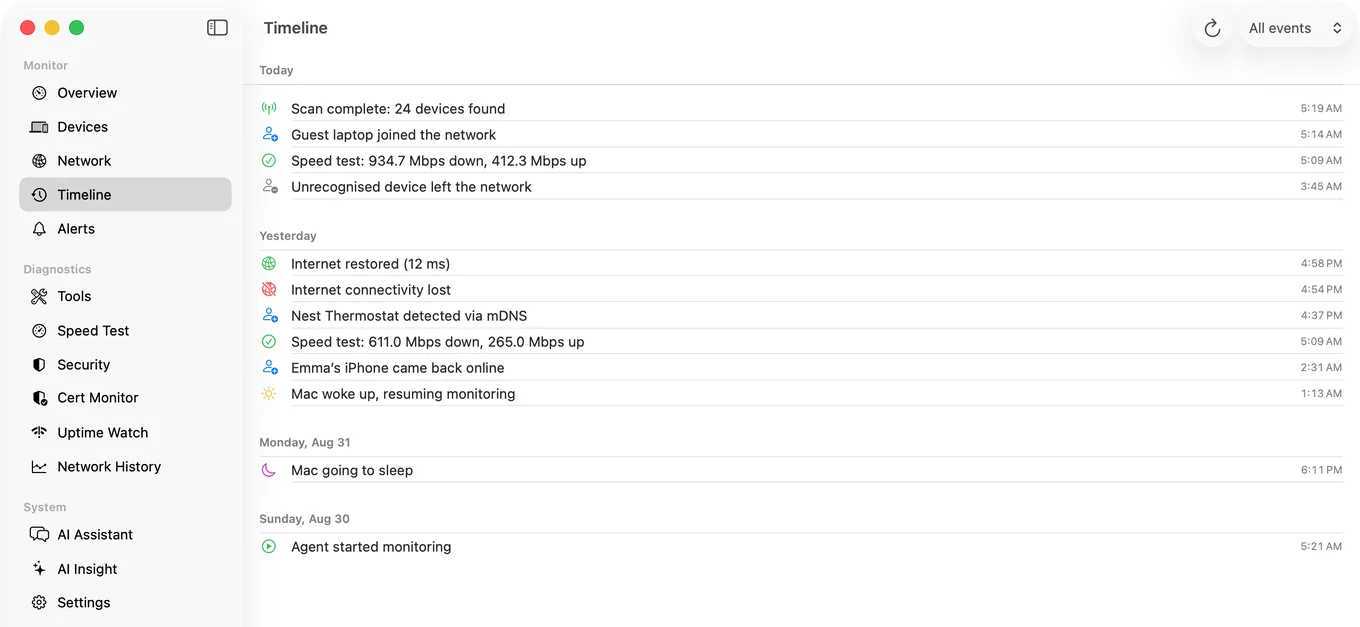
- Every drop, with a time. The timeline gets "Internet connectivity lost" at the first failed check and "Internet restored" with the latency when the connection comes back, so the gap is roughly how long it lasted, to within one check.
- Sleep and wake. The timeline marks when the Mac slept and woke, so you can tell a real drop from a closed lid.
- Alerts that wait for a pattern. Internet Down fires after three failed checks in a row and Internet Restored after two good ones. A latency alert fires above a threshold you set, 100 ms unless you change it.
- Thirty days of it. The timeline is stored on the Mac for 30 days and survives a restart or a quit; the pane shows its newest 500 events.
All of that is free on the Mac. With Guardian, the alerts and the timeline also reach the PingKit iPhone app through your own private iCloud database; during an outage the Mac has nothing to send with, so the drop and the recovery arrive together once the line is back. On the iPhone itself, Live Connection draws the same kind of check while the screen is open. It pings 8.8.8.8 by default, so it measures the internet, not the Wi-Fi.
What the Agent Reads About Your Wi-Fi, and What It Does Not
The Agent's My Network tool reads the network you are joined to: signal strength and noise in dBm, signal-to-noise in dB, band, channel with its width and the transmit rate, next to your local IP, gateway and public IP. It is a reading taken when you open the tool, much like Option-clicking the Wi-Fi icon, gathered in one window.
It does not scan the networks around you. There is no list of your neighbours' networks, no channel survey and no signal graph over time. For those, Wireless Diagnostics' Scan and Performance windows are the right tools, free and already installed. The two divide the work cleanly: Apple's tool for the radio right now and the networks nearby, the Agent for what your own connection did over the last few days.
One macOS detail applies here: since macOS 14 the name of the network you are on counts as location data, so the Agent asks for Location Services to show it. Signal, noise, channel and rate read without it.
Which Tool for Which Question
| Question | Use |
|---|---|
| Is my signal good right now? | Option-click the Wi-Fi icon, or the Agent's My Network |
| Is my channel crowded by neighbours? | Wireless Diagnostics, Scan |
| What does the radio do as I move around? | Wireless Diagnostics, Performance |
| Apple support wants a report | Wireless Diagnostics, the report in /var/tmp |
| Does my connection drop, and when? | PingKit Agent's timeline, on a Mac that stays awake |
| I need evidence for my ISP | PingKit Agent, then how to prove internet drops to your ISP |
Honest Limits
- The Agent records while your Mac is awake. It does not keep the Mac awake and its checks stop while it sleeps, so a closed MacBook records nothing.
- It records reachability, not radio quality. A drop on the timeline is the Mac losing the internet. A Wi-Fi fault and an outage on the line look the same from the Mac, so check whether other devices dropped at the same moment.
- Short drops can slip between checks. A drop shorter than the check interval may not be recorded.
- No nearby-network scan, no signal history, no packet capture. Use Wireless Diagnostics for those.
- macOS 15 or later.
Frequently Asked Questions
How do I open Wireless Diagnostics on a Mac?
Hold the Option key, click the Wi-Fi icon in the menu bar and choose Open Wireless Diagnostics. The app is also in /System/Library/CoreServices/Applications if the Wi-Fi icon is not in your menu bar. Its extra tools, including Scan and Performance, are under the Window menu.
Where does Wireless Diagnostics save its report?
In /var/tmp, as a compressed file whose name starts with WirelessDiagnostics and ends in .tar.gz. In Finder, choose Go, then Go to Folder, and type /var/tmp to find it.
Can Wireless Diagnostics show nearby Wi-Fi networks?
Yes. Its Scan window, under the Window menu, lists the networks the Mac can hear with their channel, band, width, signal and noise. PingKit Agent does not scan nearby networks; it reads only the network the Mac is joined to.
Does Wireless Diagnostics keep a history of Wi-Fi drops?
No. Its monitor runs only while its window is open, and its Performance graphs are live. PingKit Agent, free on the Mac, keeps a 30-day timeline of internet drops and recoveries with their times, recorded while the Mac is awake.
Is there a network diagnostics app for Mac that alerts me when the internet drops?
PingKit Agent raises an Internet Down notification on the Mac after three failed checks in a row, and Internet Restored when the connection comes back, free, while the Mac is awake. With Guardian, the same alerts reach the PingKit iPhone app once the Mac is back online.
Know when it dropped, not just how it looks now
Wireless Diagnostics shows your Wi-Fi in the moment. PingKit Agent keeps the record: every drop and recovery, dated, while your Mac is awake. Free, no account, macOS 15 or later.
Get PingKit Agent for Mac