Sonos Keeps Dropping Off WiFi: How to Find Out Why
Short version. A Sonos speaker that vanishes from the app is doing one of two things: leaving the network outright, or staying on a link so unstable that the app gives up on it. PingKit's Bonjour Browser answers the first question, because Sonos announces itself over mDNS and the announcement stops when the speaker goes. Live Connection in the Monitor tab answers the second, by graphing latency, jitter and loss on the same WiFi the speaker is using. The fix is usually band and placement, not the speaker. A Mac running the free PingKit Agent is what catches the drop at 9pm when you were not holding the phone.
Two Failures That Look Identical in the Sonos App
When a room greys out or playback stops, the app tells you the speaker is unavailable. That single message covers two very different situations.
The first is that the speaker has actually left the network: the radio dropped, it lost its association with the access point, and nothing on the network can reach it. The second is that the speaker is still there and answering, but the link between your phone, the speaker and the router is carrying enough jitter and loss that the control connection times out. In that second case the speaker will often be back a minute later on its own, which is the pattern most people describe as "it keeps dropping".
They need different fixes, so it is worth two minutes to find out which one you have.
Step 1: Is the Speaker Still Announcing Itself?
Sonos publishes itself over Bonjour, which is how the app finds speakers without you typing an address. Open PingKit, go to the Tools tab and open Bonjour Browser. Look for _sonos._tcp. Most Sonos units also advertise _spotify-connect._tcp and a plain _http._tcp for their own web interface, so you will usually see a speaker two or three times under different service types. That is normal.
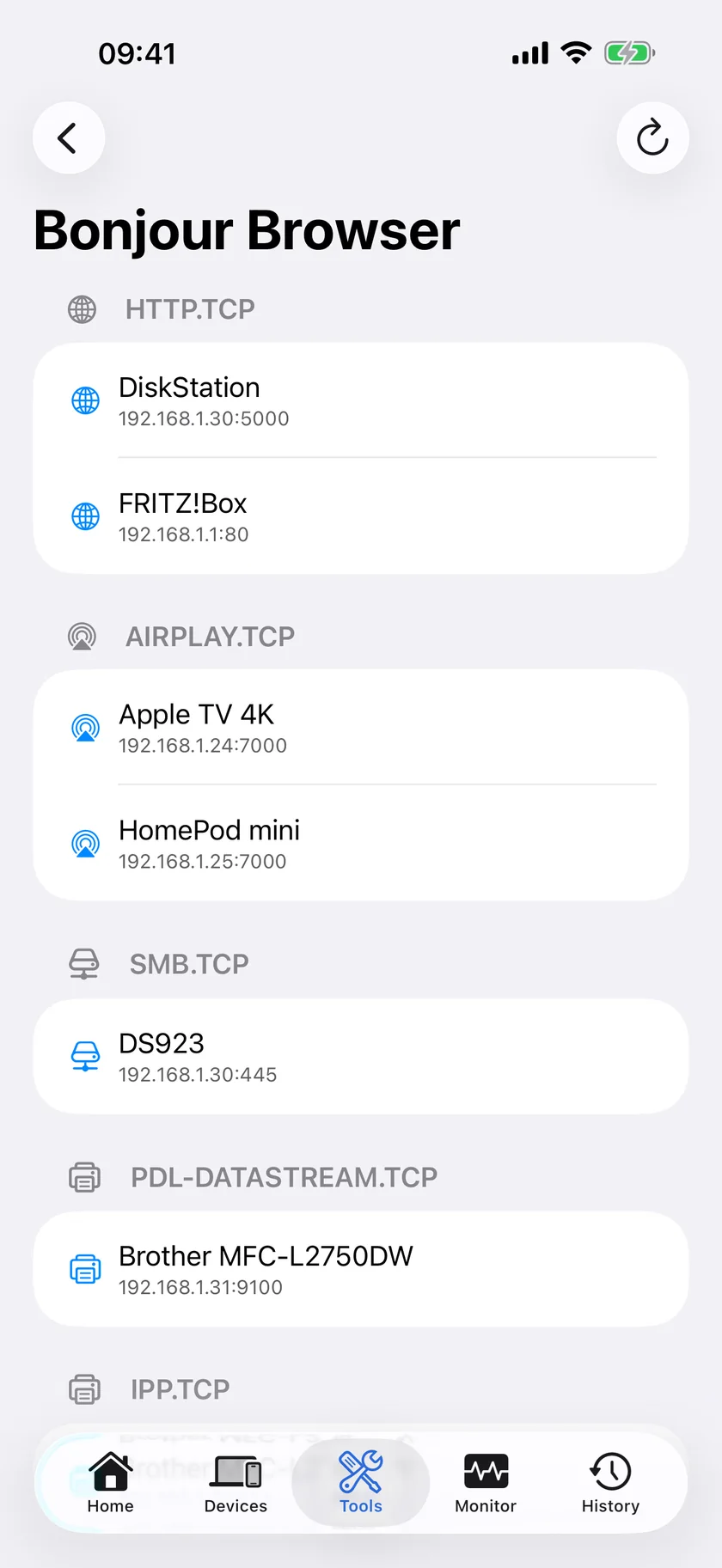
Do this while the problem is happening, not after it clears.
- The speaker is listed. It is on the network and talking. Your problem is link quality or the app, not a device that leaves. Go to step 2.
- The speaker is missing, and it was there before. It is genuinely leaving the network. Go to step 3.
The Bonjour Browser and Live Connection are both free in PingKit, no account needed. Get PingKit for iPhone
Step 2: Measure the Link It Is Riding On
Open the Monitor tab and start Live Connection. PingKit pings once a second and graphs the last sixty results, with the current, average, minimum and maximum latency, the jitter, and any timeouts marked in red along the bottom.
Run it twice, because the default target and the useful one are different. Out of the box it pings a public resolver, 8.8.8.8, which measures the whole path from your phone to the internet; that tells you whether the connection as a whole is misbehaving. Then pick Custom from the target list and enter the speaker's own address from the Devices tab. That second run is the one that describes the link between your phone and the speaker, which is what this page is about. Stand roughly where the speaker is, and give each run a minute or two.
What you are looking for is not the average. It is the shape.
| What the graph looks like | What it means for a Sonos |
|---|---|
| Against the speaker: a flat line, jitter in single digits, no timeouts | The local link is fine. Look at the app, the controller device, or a firmware update |
| Against the speaker: a flat line with occasional spikes into the hundreds | Interference or a busy channel. Typical of 2.4 GHz in a flat with many neighbours |
| Against the speaker: regular timeouts | Marginal signal. The speaker is at the edge of coverage or behind something dense |
| Against 8.8.8.8 only: latency that climbs and then collapses | Something is saturating your internet connection. A large upload or a backup is the usual culprit, and the speaker is a bystander |
Live Connection runs while the screen is on and the view is open; it stops when you leave it. That is an iOS limit, not a choice, and it is why the last section of this page exists.
One caution about reading it: against a public target you are measuring your whole internet path, so a bad graph there is not evidence about your WiFi. Only the run aimed at the speaker's own address says anything about the link to the speaker.
Step 3: The Fixes, in the Order That Works
- Give the speaker a reserved address. In your router's DHCP settings, bind the speaker's MAC address to a fixed IP. On iOS 27 and later, PingKit usually shows it on the speaker's detail screen in the Devices tab; on iOS 17 to 26, take it from the router's own client list, because iOS hides most devices' hardware addresses from apps and the iPhone usually cannot show it. A speaker whose address moves is a speaker the app has to rediscover.
- Deal with the band. Sonos units are 2.4 GHz on most models, and 2.4 GHz is the crowded band. If your router publishes one network name for both bands, a speaker can be steered onto a band or an access point that is worse for it. Splitting the names so you can place devices deliberately is the single most effective change on a congested network. An iPhone cannot show you which band or channel anything is using, because iOS does not expose it; a Mac can, and Which WiFi Channel and Band Your Mac Is Using covers reading its band, channel, signal strength and noise floor.
- Move one thing. A speaker inside a metal media unit, behind a TV, or in a kitchen full of appliances is a different radio environment from the same speaker on a shelf. Move the speaker before you move the router.
- Count what else is on the 2.4 GHz band. Smart plugs, bulbs, cameras and older thermostats all live there and all chatter. Are Smart Home Devices Slowing Down Your WiFi? has the arithmetic.
- Consider wiring one unit. A single Sonos on Ethernet gives the rest of the system a stable anchor, and it is the fix people report most often after everything else.
Catching the Drop You Are Not Awake For
The difficulty with an intermittent speaker is evidence. It fails at 9pm, you pick up the phone at 9:04, and by then everything is fine.
An iPhone app cannot fill that gap on its own, because iOS does not let an app keep watching the network while it is closed. The free PingKit Agent can, on a Mac that stays awake overnight: it scans every five minutes on mains power, and once a device has gone unseen for fifteen minutes it marks it offline and writes a "stopped answering (may be asleep)" entry into a timeline you can read the next morning. Device Offline alerts are off by default: turn the Device Offline toggle on in the Agent's Settings under Device Alerts.
The Agent also pings the internet every thirty seconds, so if your Sonos drops at the same moment the whole connection does, the timeline shows both and the answer stops being about the speaker at all. With PingKit Guardian, those alerts and that timeline also appear on your iPhone. The alert reaches the iPhone through your own private iCloud, which is one hop and best effort rather than instant.
Honest Limits
- The Agent's device watching sees a speaker leave the network. It cannot see a speaker that stays on the network while the Sonos app loses it, which is the step 2 case. Live Connection is the tool for that one, and it runs only while you are looking at it.
- Fifteen minutes of grace before a device is called offline means brief drops do not raise an alert. That is deliberate; without it, every phone that slept its radio would fire one.
- PingKit does not talk to the Sonos API and does not control playback. It tells you about the network the speakers sit on.
- Live Connection pings a public resolver unless you set a custom target, so its default reading describes your internet connection rather than your WiFi.
- The Agent's five-minute scan is its mains-power default; on battery it drops to fifteen minutes, which lengthens everything above.
- On iOS, no app can report the WiFi band, channel or signal strength of another device. Any that appears to is showing you your own connection at best.
Frequently Asked Questions
Why does my Sonos keep dropping off WiFi?
Either the speaker is leaving the network, usually a marginal 2.4 GHz link or a moving DHCP address, or it stays on the network while the control connection times out because of jitter and loss. Checking whether the speaker is still advertising itself over Bonjour while the problem is happening tells you which of the two you have.
Should I wire my Sonos with Ethernet?
Wiring one unit gives the system a stable anchor and is the change people most often report as the end of the problem. It is worth trying before replacing hardware, especially in a flat with a congested 2.4 GHz band.
Does a reserved IP address help a Sonos speaker?
It removes one cause: an address that changes when a lease expires, forcing the app to rediscover the speaker. It does nothing for a weak radio link, so do it alongside the band and placement work rather than instead of it.
Can PingKit tell me when a speaker goes offline?
A Mac that stays awake, running the free PingKit Agent, notices a device that has been unseen for fifteen minutes, marks it offline and records it on a timeline. With Guardian, your iPhone shows that alert too. Device Offline alerts are off by default, so turn them on in the Agent's Settings. The iPhone on its own cannot watch continuously, because iOS does not allow it.
See the drop, even at 9pm.
PingKit Agent is free on the Mac. Guardian, $2.99 a month or $24.99 a year on iPhone or Mac with a 1-week free trial, brings its alert history and timeline to the iPhone app.
Download PingKit for iPhone