DNS Lookup and dig on a Mac (2026): The Commands That Matter
Short version. dig ships with macOS. Use dig +short example.com for the answer alone, add a record type for anything other than an address, and add @1.1.1.1 to ask a specific resolver. Avoid nslookup: it is still present, but it does not use the same resolution path as the rest of macOS, so its answers can differ from what your applications actually get.
The Five Commands That Cover Almost Everything
dig +short example.com                # just the IP addresses
dig example.com MX +short             # mail servers
dig example.com TXT +short            # SPF, DKIM, verification records
dig example.com NS +short             # which nameservers are authoritative
dig +short example.com @1.1.1.1       # ask Cloudflare specifically
+short is the flag worth learning first. Without it, dig prints a full response with header, question, answer, authority and additional sections, which is useful when debugging and noise the rest of the time.
Which Record Type Answers Which Question
| Type | Use it when you want to know |
|---|---|
| A | The IPv4 address for a name |
| AAAA | The IPv6 address |
| CNAME | Whether the name is an alias for another name |
| MX | Where mail for this domain is delivered |
| TXT | SPF, DKIM, DMARC and domain verification strings |
| NS | Which nameservers are authoritative for the domain |
| SOA | Zone metadata, including the serial number that changes on every edit |
| SRV | Which host and port provide a named service |
| PTR | The name for an IP address, the reverse lookup |
Why Not nslookup
nslookup still exists on macOS and is what most older guides reach for. Two reasons to prefer dig:
- It queries DNS directly rather than going through macOS's own resolver stack, so an answer from
nslookupis not necessarily the answer your browser will get. That is the opposite of helpful when you are debugging why an application cannot resolve something. - Its output format is ambiguous, particularly around which parts of an answer are authoritative.
If you want the resolution path macOS itself uses, dscacheutil -q host -a name example.com is the honest choice, and scutil --dns shows the resolver configuration behind it.
Checking Propagation Properly
"DNS propagation" is mostly a misnomer. Nothing is pushed anywhere; caches simply expire. What you are really asking is whether a given resolver still holds the old answer.
Ask the authoritative nameserver first, since it is the only one that cannot be stale:
dig example.com NS +short
dig example.com @ns1.example.com +short
If the authoritative answer is right and a public resolver still disagrees, you are waiting on TTL. Check what that TTL is, without +short, in the answer section:
dig example.comThe number before IN A is the remaining lifetime in seconds. That is your actual wait, and it is why lowering TTL before a migration is the standard advice.
Your Mac caches too. After a record changes, macOS may still hold the old answer. Flush it with sudo dscacheutil -flushcache; sudo killall -HUP mDNSResponder. Both halves matter: the first clears the cache, the second restarts the resolver.
The Reverse Lookup, and a Note on the GUI
The Agent has no Dock icon: it lives in the menu bar and drills into each of its eight tools inside the same window, so a lookup is a click from wherever you were rather than a new Terminal tab.
dig -x 1.1.1.1 +shortThat is a PTR query, which maps an IP back to a name. It is the quickest way to identify an unexpected address in a log, though many addresses have no PTR record at all and a missing answer means nothing is wrong.
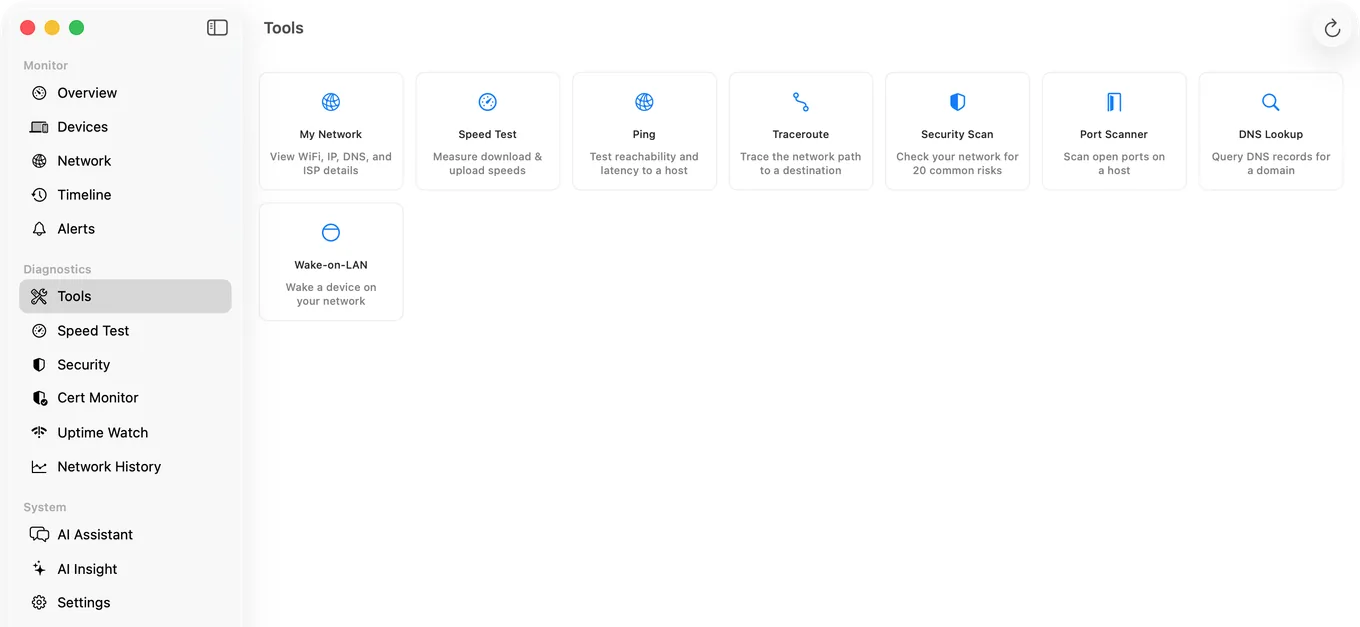
dig for the record types most people need.PingKit Agent includes a DNS Lookup tool with a record type picker covering A, AAAA, MX, CNAME, NS, TXT, SOA and SRV, plus an All option that queries every type at once. It is the faster route when you want several record types for a domain without retyping the command, and it sits alongside the ping, traceroute and port scan tools in the same app.
Being precise: the Agent's picker does not include PTR. For reverse lookups use dig -x in Terminal.
Honest Limits
- No PTR in the Agent's DNS tool. Use
dig -xfor reverse lookups. - Neither dig nor the Agent can bypass a TTL that a remote resolver is still honouring.
- A VPN redirects DNS, so results differ with one connected.
- macOS 15 or later for PingKit Agent.
Frequently Asked Questions
Does macOS come with dig?
Yes. dig ships with macOS and needs no installation. Run dig +short example.com in Terminal for a concise answer, or dig example.com for the full response.
Should I use dig or nslookup on a Mac?
Use dig. nslookup queries DNS directly rather than through the macOS resolver stack, so its answers can differ from what applications on the Mac actually receive, and its output is ambiguous about which parts are authoritative.
How do I check DNS propagation from a Mac?
Query the authoritative nameserver first with dig example.com NS +short followed by dig example.com @
How do I flush the DNS cache on macOS?
Run sudo dscacheutil -flushcache; sudo killall -HUP mDNSResponder. The first command clears the cache and the second restarts the resolver, and both are needed.
How do I do a reverse DNS lookup on a Mac?
Run dig -x 1.1.1.1 +short, substituting the address you are checking. Many IP addresses have no PTR record, so an empty answer does not indicate a fault.
Query every record type without retyping
A DNS Lookup tool covering A, AAAA, MX, CNAME, NS, TXT, SOA and SRV, alongside ping, traceroute and port scanning. macOS 15 or later.
Get PingKit Agent for Mac