MAC Address Lookup on a Mac: Find the Maker of the Devices on Your Network
Short version. To look up one MAC address, search its first six characters in the IEEE's public registry, free in any browser. To get the maker of each device on your network without copying addresses, PingKit Agent does the lookup for every device its scan finds, free on the Mac: on macOS 15 and 26, and on macOS 27 with Agent 3.3.0 or later. It has no screen where you type an address in, and a private (randomised) address has no maker to find.
Free. PingKit Agent shows each device's MAC address and network chip maker on macOS 15 and 26, and on macOS 27 from Agent 3.3.0. No account.
People search for a MAC address lookup app for one of two jobs. Either they have an address in front of them, from a router's device list or a log, and want to know who made the hardware. Or they want a scanner that finds the devices on their network and puts a maker next to each one. On a Mac the first job is free in a browser and the second is what PingKit Agent does. This page covers both, and is plain about what neither can tell you.
Full disclosure: I build PingKit Agent, so weigh the recommendation accordingly. One limit up front: PingKit has no screen where you type a MAC address in and get a maker back, on the Mac or on the iPhone. Its lookup runs on the devices its scan finds. For a single address, the free method below is the right one.
Look Up Any MAC Address, Free
A MAC address is six pairs of hexadecimal digits, such as 00:1A:2B:3C:4D:5E. Its first half, or a little more, is a block the IEEE Registration Authority assigned to a company, and the IEEE publishes every assignment.
- Copy the first six characters of the address, without the colons.
- Open the IEEE's Search for an Assignment page and search for them.
- If the company named is "IEEE Registration Authority", that block is split into smaller ones. Search the first seven or nine characters instead, because some companies hold a 28-bit (MA-M) or 36-bit (MA-S) block rather than a full 24-bit (MA-L) one.
The IEEE also publishes the three registries as CSV files from its Registration Authority site. Most lookup websites and apps are built on those files, PingKit included.
When there is no answer. If the second character of the address is 2, 6, A or E, the address is locally administered: made up by the device, not assigned to a company. iPhones, Android phones and Macs use such private addresses on Wi-Fi by default, so a lookup has nothing to find. That is not a broken lookup, and no app can do better.
Your Own Mac's Addresses, in Terminal
To see the hardware address of each network port on your Mac, open Terminal and run:
networksetup -listallhardwareportsEach port is listed with its name, its device (en0, en1 and so on) and an Ethernet Address line, which is the MAC address. Read the port name rather than assuming en0 is Wi-Fi: on a Mac with built-in Ethernet, en0 is usually the Ethernet port.
On Wi-Fi your Mac may show the network a private address instead. In System Settings, Wi-Fi, Details, the Private Wi-Fi address menu offers Off, Fixed and Rotating, and Apple says a Mac chooses Fixed by default when it joins a new network with WPA2 or stronger security. The address in your router's device list is the one the network actually saw.
Your Neighbours' Addresses: arp -a
For the other devices on your network, Terminal has arp -a, which prints each device your Mac has recently exchanged traffic with, by IP address and MAC address. It works on current macOS, macOS 27 included, because it is Apple's own tool.
Two catches. The table holds only devices your Mac has talked to lately, so it undercounts; pinging your network's broadcast address first fills it a little, though many devices ignore broadcast pings. And the output is addresses only: to get a maker you copy each prefix into the registry by hand, which is fine for one device and tedious for thirty. How to see every device on your network from a Mac compares arp with your router's list and a scanner.
What PingKit Agent Does Automatically
PingKit Agent is a free menu bar app for macOS 15 or later that scans your network every few minutes while your Mac is awake. For each device it finds, the device's detail does the lookup above for you:
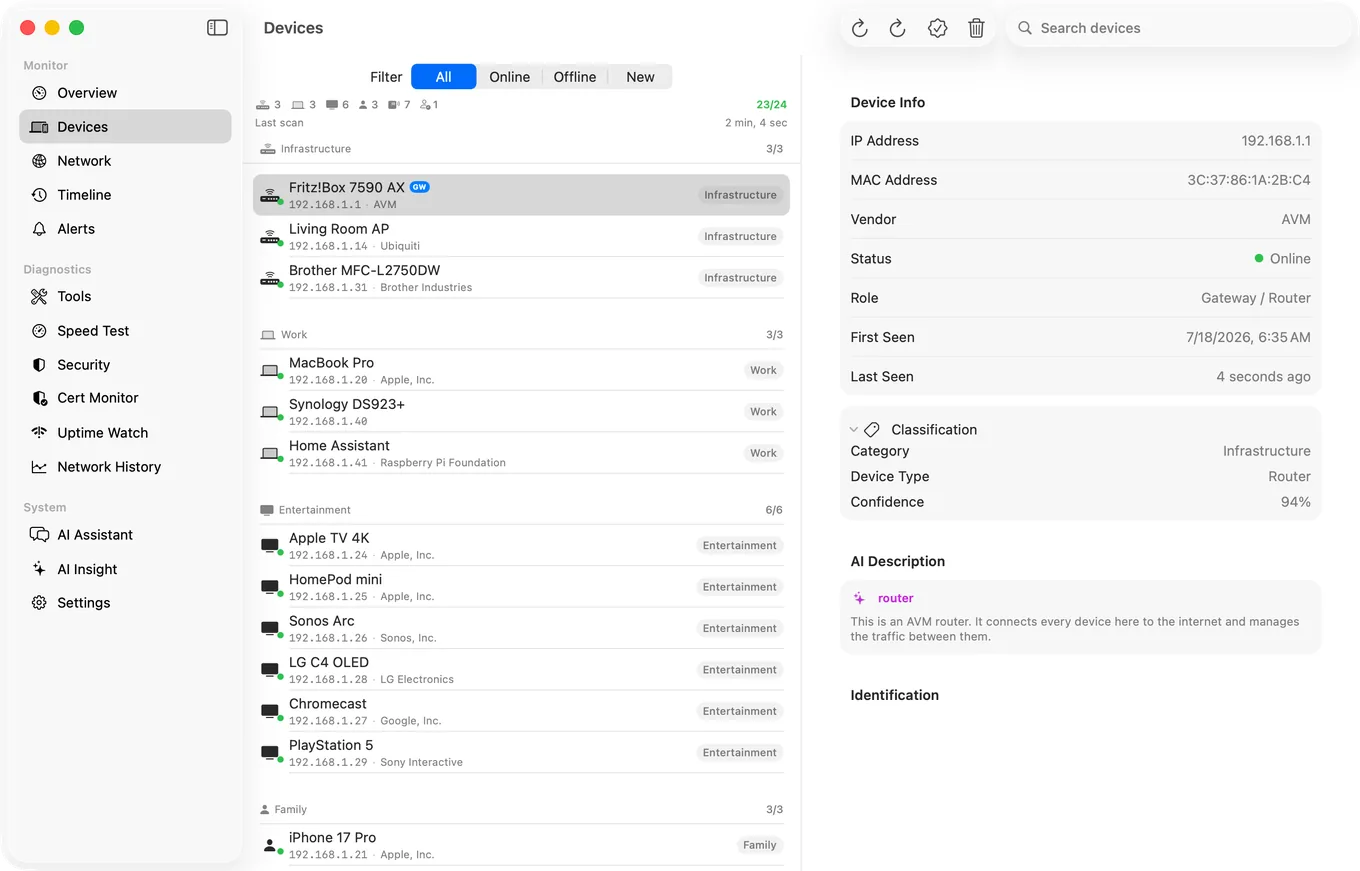
- MAC Address, read from your Mac's ARP table, on macOS 15 and 26, and on macOS 27 with Agent 3.3.0 or later.
- Network chip: the company the IEEE registry names for that address, looked up on the Mac in a copy of the registry that ships with the app, longest block first (36-bit, then 28-bit, then 24-bit), so a company holding a small block is named rather than "IEEE Registration Authority".
- Vendor: the brand the device reports about itself, where it reports one, from its UPnP description, its Bonjour records, its model name or its hostname.
The two names are kept apart on purpose. A MAC prefix names whoever made the network chip, not the brand on the box: a smart plug built on an Espressif Wi-Fi chip looks up as Espressif, while the plug itself announces its real brand. Showing each under its own label is more useful than a single "vendor" that is right for laptops and wrong for many smart home devices.
Two cases get no maker. A private address is never looked up, because its prefix was made up and any company it matched would be a coincidence. And on macOS 27 an Agent older than 3.3.0 gets no MAC addresses from the system at all, so the row is absent and the detail says why; the device is still found and named from what it announces. Other Mac scanners meet the same macOS 27 rule, so check one fills in MAC addresses on macOS 27 before you buy it.
All of this is free, along with the new device alert that tells you when a device the Agent has never seen joins. With Guardian, the PingKit iPhone app shows the same rows, MAC address included, for the devices your Mac found.
On iPhone: Mostly Placeholders
If you came here for an iPhone MAC address scanner, the honest answer starts with iOS. It hands apps a placeholder, 02:00:00:00:00:00, instead of most devices' MAC addresses, which is why most iPhone scanners show few or none. PingKit's LAN scan on iPhone names devices from what they announce instead: Bonjour and UPnP services and hostnames.
There is one exception. From version 3.3.0, PingKit on iPhone fills in a MAC address for a device that answers NetBIOS, often a Mac with File Sharing on or a Windows PC, from the unit ID in its reply. For the rest, the real addresses come from your router's device list, or from a Mac: with Guardian and PingKit Agent running on a Mac, the iPhone app shows the addresses the Mac read.
Honest Limits
- No type-in lookup. PingKit looks up the devices its scan finds. For an address from a log or a router list, use the IEEE search.
- A maker is not a device. "Espressif" or "Murata" tells you whose chip it is, not which of your gadgets. The Vendor row and the services a device advertises usually narrow it down; sometimes only unplugging something does.
- Private addresses have no maker, in any tool.
- IPv4 only. A device with only an IPv6 address is not in the Agent's list.
- Awake only. The Agent scans while your Mac is awake and stops while it sleeps.
- macOS 15 or later, and Agent 3.3.0 or later for MAC addresses on macOS 27.
Which to Use
- One address, from anywhere: the IEEE registry search.
- Your own Mac:
networksetup -listallhardwareports, and check the Private Wi-Fi address setting. - A quick look at the neighbours:
arp -a, then the registry. - The devices on your network, with makers, kept up to date: PingKit Agent, free, while your Mac is awake.
Frequently Asked Questions
Is there a free MAC address lookup on Mac?
Yes. The IEEE Registration Authority's public assignment search looks up any MAC prefix free in a browser, and the IEEE publishes the full registries as CSV files. PingKit Agent, free on the Mac App Store, looks up the network chip maker of each device it finds on your network, unless the device uses a private address, on macOS 15 and 26, and on macOS 27 with Agent 3.3.0 or later.
How do I find the MAC address of a device on my network from a Mac?
Run arp -a in Terminal to list the devices your Mac has recently talked to, with their MAC addresses, or check your router's device list. PingKit Agent shows a MAC address in each device's detail on macOS 15 and 26, and on macOS 27 from Agent 3.3.0.
Why does a MAC address lookup return no manufacturer?
Usually because the address is private. If its second character is 2, 6, A or E, the device made the address up for privacy, so it belongs to no company. A lookup that names IEEE Registration Authority means the company holds a smaller block, and the longer prefix has to be searched.
Can an iPhone app scan MAC addresses?
Mostly not. iOS gives apps a placeholder instead of most devices' MAC addresses. From version 3.3.0, PingKit for iPhone shows one for devices that answer NetBIOS, often a Mac with File Sharing on or a Windows PC, and with Guardian it shows the addresses a Mac running PingKit Agent found.
What is the difference between Vendor and Network chip in PingKit Agent?
Network chip is the company the IEEE registry names for the MAC address, which is whoever made the device's network interface. Vendor is the brand the device reports about itself, from its UPnP, Bonjour or hostname details, where it reports one. A smart plug can show a chip maker such as Espressif and its own brand as Vendor.
A maker next to each device, without the copying
PingKit Agent finds the devices on your network while your Mac is awake and shows each one's MAC address and network chip maker: on macOS 15 and 26, and on macOS 27 from Agent 3.3.0. Free, no account.
Get PingKit Agent for Mac