Wireshark for iPhone (2026): The Real Way to Capture iOS Traffic
Short version. No App Store app can capture packets on iOS, including mine. The supported route is to plug the iPhone into a Mac and use rvictl to create a remote virtual interface, then capture that in Wireshark. If your actual question is "why is this connection bad" rather than "show me the bytes", PingKit answers that on the phone without a Mac.
"Wireshark for iPhone" is one of those searches where the honest answer is short: it does not exist, and no App Store app can substitute for it. What follows is the method Apple actually supports, and a realistic view of what you can diagnose without it.
Full disclosure: I build PingKit, so weigh the recommendation accordingly. The comparison below is written to stay useful even if you pick something else, and the limits section is not padding. Competitor features and pricing change, so check the current listing before you decide.
Why No iOS App Can Capture Packets
Packet capture requires putting a network interface into promiscuous mode and reading frames directly, which needs raw socket access and privileged interface control. iOS grants neither to App Store apps. There is no entitlement to apply for.
This is worth being blunt about because the App Store contains apps whose descriptions imply otherwise. If an iOS app claims to sniff traffic on your WiFi, it is either doing something much narrower (like inspecting its own connections) or the description is overstating what it does. No app on a non-jailbroken iPhone can show you your neighbour's packets, or your smart TV's.
The Method That Works: rvictl on a Mac
Apple ships a tool called Remote Virtual Interface for exactly this. You will need a Mac with Xcode command line tools and a USB cable.
- Connect the iPhone to the Mac by cable and trust the computer.
- Find the device UDID. In Finder, select the iPhone and click the details line under its name until the identifier appears, or use
system_profiler SPUSBDataType. - Create the interface:
rvictl -s <UDID>. This adds anrvi0interface on the Mac that mirrors the phone's traffic. - Open Wireshark and capture on
rvi0. Or use the command line:tcpdump -i rvi0 -w capture.pcap. - When finished, tear it down:
rvictl -x <UDID>.
What you will and will not see. You get every packet the phone sends and receives, including cellular. You will not get plaintext for HTTPS, which is nearly everything, without also configuring a TLS-intercepting proxy and trusting its certificate on the device. Certificate pinning in many apps defeats even that.
What You Can Diagnose Without a Mac
Most people searching for a packet sniffer do not actually want packets. They want to know why something is slow, dropping, or failing to connect. Those questions have answers that do not require a capture:
| Question | Tool that answers it |
|---|---|
| Is the connection dropping, and how often? | Connection Monitor (latency, jitter, packet loss) |
| Where in the path is latency introduced? | MTR or Traceroute |
| Is DNS resolving correctly? | DNS Lookup |
| What is this server's certificate chain? | SSL Inspector |
| What headers and status is this endpoint returning? | HTTP Analyzer |
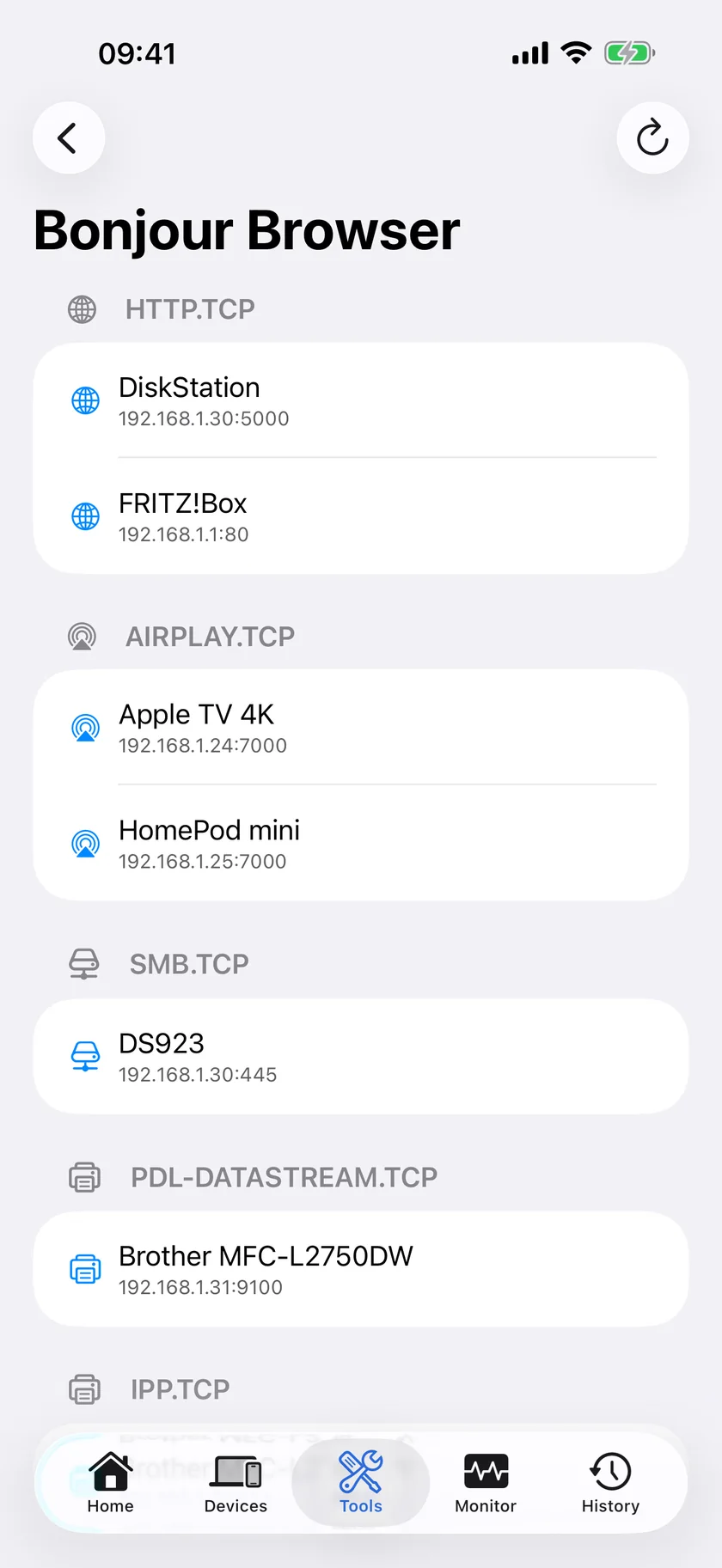
| What is on my network? | LAN Scanner |
PingKit does all of these free. It does not capture packets, and no update will change that, because the platform forbids it.
Honest Limits
- Connection Monitor runs in the foreground with a rolling window of roughly the last minute of samples. It is a live diagnostic, not a background recorder that logs overnight.
- Traceroute and MTR show IP addresses and latency, not reverse-DNS hostnames.
- HTTP Analyzer inspects requests it makes, not traffic from other apps on your phone.
Which Should You Use?
You need the actual bytes: Mac plus rvictl plus Wireshark. There is no shortcut.
You need to know why the network is misbehaving: an on-device toolkit is faster and usually sufficient.
You want to inspect another device's traffic: capture at the network instead, on a router that supports port mirroring or with a Raspberry Pi inline.
Frequently Asked Questions
Is there a Wireshark app for iPhone?
No. Wireshark has no iOS version and cannot be ported, because packet capture requires raw socket access and promiscuous interface control that iOS does not grant to App Store apps.
How do I capture iPhone network traffic?
Connect the iPhone to a Mac by USB, run 'rvictl -s
Can any iOS app sniff WiFi packets?
Not on a non-jailbroken iPhone. Apps can inspect connections they make themselves, but no App Store app can capture other devices' traffic or put the WiFi interface into promiscuous mode.
Will I see HTTPS content in an rvictl capture?
No, not without extra work. HTTPS payloads are encrypted. You would need a TLS-intercepting proxy with its certificate trusted on the device, and many apps use certificate pinning which defeats that too.
What can PingKit do instead of packet capture?
It measures latency, jitter and packet loss, maps the network path with traceroute and MTR, resolves DNS, inspects TLS certificates and HTTP responses, and scans your local network. It does not capture packets.
Diagnose the connection without a capture
PingKit measures latency, jitter and loss, maps the path hop by hop, and inspects DNS, TLS and HTTP. Nineteen tools, free, no ads.
Download PingKit Free